


Common Pitfalls When Designing Floor Plans in Excel
Many errors in Excel floor plan creation stem from improper scale settings, misaligned grid snapping, overlapping layers, and inaccuracies in print layout. Since Excel is primarily built for spreadsheets rather than spatial drawings, these problems frequently appear. Nevertheless, by correctly configuring the grid, organizing shapes effectively, and adjusting page setup, most Excel-related floor plan challenges can be efficiently resolved.
Essential Insights
Introduction to Excel Floor Plan Challenges
Numerous users attempt their initial floor plan designs in Excel due to its graph-like grid, ease of shape drawing, and wide availability. However, after handling several residential layouts, a recurrent theme emerges: as complexity grows, issues like misaligned walls, displaced shapes, and incorrect print dimensions become apparent.
Walls may fail to connect properly, objects can abruptly shift, and physical printouts frequently come out at unexpected scales. For amateurs trying to map simple apartments or office spaces, these obstacles prove frustrating.
In several client projects where spreadsheets were first employed for planning, transitioning to a user-friendly online floor plan application resulted in immediate improvements in precision and workflow efficiency.
Despite this, Excel remains suitable for very straightforward layouts, provided one is aware of common pitfalls and how to mitigate them. Below are the most prevalent issues and practical solutions.
Understanding Why Excel Floor Plan Errors Occur
Crucial Understanding: Excel grids aren’t automatically linked to real-world measurements, leading to many floor plan inaccuracies.
Excel treats each cell more like a data container than a physical measurement unit. When users start inserting rectangles or lines to represent walls, they often mistakenly believe the grid cells correspond to uniform units, yet row heights and column widths are measured differently.
This mismatch causes distorted room shapes, where squares become rectangles and corridors vary in width, with small deviations compounding throughout the entire layout.
Common causes include:
In professional design software, drawing units directly correspond with actual dimensions, but Excel demands manual calibration.
Problems with Scale and Grid Calibration
Insight: Without setting the grid scale before drawing, all measurements become unreliable.
One frequent inquiry concerns the scale: users draw rooms first and try to adjust dimensions after, which complicates correction if shapes are placed on a mismatched grid.
Recommended Approach:
To ensure consistency, define your grid scale upfront, mirroring architectural training methodologies that prioritize scale before layout development.
Challenges with Shape Overlaps and Layering
Insight: Incorrect layering can cause walls, furniture, and notes to overlap improperly.
Excel uses a stacking order to determine which object appears above another. When floor plans include multiple elements like walls, doors, and furnishings, managing this layering is vital.
Typical layering errors are:
Quick Remedies for Layering Issues
Advanced users often prefer dedicated tools like Homestyler that automate layer control to avoid accidental overlaps inherent in Excel.
Printing and Page Setup Errors
Insight: Many floor plans printed from Excel have wrong sizes because page scaling overrides the grid scale.
Drawings may appear correct on screen but print inaccurately, confusing beginners.
Common printing issues include:
Checklist for Accurate Printing
Architects always verify print scale meticulously, even when using professional tools.
Data or Formula Interference in Layouts
Insight: Embedded formulas and cell formatting can inadvertently shift drawing components.
Problems surface when floor plans coexist with calculation data, for example, when users compute room areas adjacent to the layout. Automatic adjustments of row heights or column widths can distort the visual arrangement.
Hidden conflicts include:
Best practice is to separate spatial design from spreadsheet calculations by placing formulas on different sheets to preserve grid consistency.
Stepwise Solutions to Frequent Excel Layout Problems
Insight: A systematic cleanup can rectify most issues without recreating the entire plan.
Suggested workflow includes.
If complexity grows, consider porting the layout to a visual planner like Homestyler, which inherently manages scale and object layout, eliminating many typical Excel frustrations.
Rapid Fix for Excel Floor Plan Dilemmas
Resetting the grid scale, enabling snap-to-grid features, and verifying page print scaling are the fastest corrections. Because Excel grids aren't true physical measurement spaces, uniform cell size assignment solves most alignment and dimension problems.
Summary and Final Thoughts
Frequently Asked Questions
Why does my Excel floor plan print at the wrong dimensions?
Excel automatically scales pages to fit; manually setting print scale to 100% and defining a print area solves this.
How can scaling problems in Excel floor plans be corrected?
Make sure row heights equal column widths, then assign a consistent unit scale, e.g., one cell equals one foot.
Why don’t my shapes snap properly to the grid?
The 'Snap to Grid' option is likely disabled; enable it in shape formatting to constrain shapes within cells.
Is Excel suitable for professional floor planning?
Excel works for simple designs but isn’t efficient or accurate enough for detailed architectural plans.
Why do walls overlap incorrectly?
It’s usually due to improper layering; adjusting stacking order via 'Bring to Front' or 'Send to Back' remedies this.
What is the simplest way to troubleshoot an Excel floor plan?
Reset and match row and column sizes to eliminate most alignment errors.
How can I maintain a consistent grid in Excel layouts?
Turn off AutoFit and avoid merged cells in your drawing zone.
When should I switch from Excel to specialized design software?
If your project involves furniture layouts, multiple rooms, or precise measurements, adopting dedicated software like Homestyler is more effective.
References
Microsoft Excel Official Documentation: Page Layout and Printing.
American Institute of Architects: Architectural Scale Standards.

Minimalist Two Tone Solid Wood L Shaped Office Desk With Drawers 3D Model
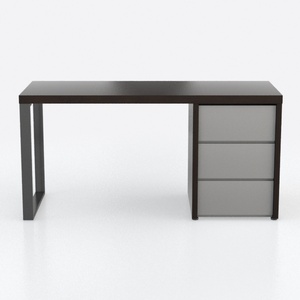
Modern Minimalist Two Tone Wood Office Desk with Storage Drawers 3D Model


Homestyler is an easy-to-use online home design platform that offers powerful 3D rendering, a vast collection of interior design projects, and helpful DIY video tutorials—perfect for turning your creative ideas into stunning spaces.
Projete agora para LIVRE
































