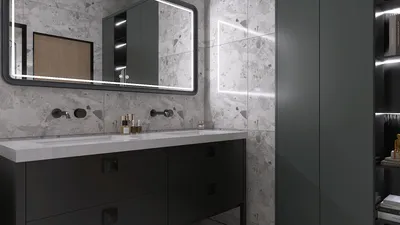


Designing a floor plan with Microsoft Excel presents an inventive solution for organizing your space without incurring high costs for specialized software. Whether you're drafting plans for a new home, rearranging your office setup, or optimizing the layout of a compact room, this guide will enable you to create an efficient layout using Excel, a program many already have at their disposal. Additionally, for those seeking more advanced features, tools like Homestyler offer even greater design capabilities.
Begin by launching a new worksheet. Adjust the grid settings to improve spatial visualization. Alter the heights of rows and widths of columns to create uniform squares, thus providing a clearer picture of the area you’re working with.
Establishing Your Grid
1. Identify the section you wish to utilize for your floor plan. Highlight a set of cells in a rectangular pattern that corresponds with your space dimensions.
2. Right-click to access ‘Row Height’ and make necessary modifications to create a grid that resembles squares closely. Repeat this process with ‘Column Width.’ A recommended adjustment might be setting both to 20, or any measurement that suits your needs.
Incorporating Walls and Rooms
To illustrate walls, utilize cell borders. Highlight the cells designated for walls, then right-click and select ‘Format Cells.’ Navigate to the ‘Border’ tab to choose a preferred line style, which will aid in understanding the spatial layout.
Subsequently, begin designating your rooms by merging cells with the ‘Merge & Center’ functionality. This method allows you to define specific areas for living quarters, such as a kitchen, living room, or workspace.
Integrating Furniture
How can you incorporate furniture into your layout? You can create basic furniture shapes using varying cell colors or design shapes utilizing Excel's drawing tools. Think about crafting shapes for a couch, a dining table, or a desk to better visualize how the furniture integrates into your planned spaces.
Final Adjustments
To enhance your floor plan, add color coding or distinct patterns to different rooms, which will not only improve visual attractiveness but also enhance functionality.
Common Questions
While Excel functions as primarily a 2D design tool, you can try to incorporate 3D elements with shapes and layering methods, although the sophistication may not match that of dedicated software solutions.
Excel is user-friendly and familiar to most, providing an easy platform for modifications and calculations, thereby making it an excellent choice for initial design endeavors. If you desire a more robust design experience, consider exploring applications like Homestyler, which offer extensive features for intricate designs.
Homestyler's roots trace back to Autodesk, the global leader in design and engineering software. That heritage lives on in every feature we build. Today, with a community of more than 18 million users worldwide, Homestyler continues to make professional-quality interior design accessible to everyone — from first-time decorators to seasoned architects.

Minimalist Boucle Fabric L Shaped Sectional Sofa with Throw Pillows 3D Model

Minimalist Neutral Fabric Irregular Coffee Table 3D Model
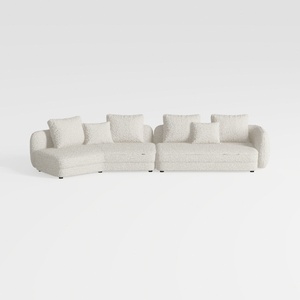

Minimalist Boucle Fabric Curved Sectional Sofa 3D Model
Looking to transform your home? Homestyler is your go-to online design platform! With its user-friendly design tool, impressive 3D rendering, and a wealth of inspiring projects and video tutorials, you can easily bring your interior design dreams to reality. Start creating today!
Projete agora para LIVRE
































