

Converting a 3D model into an FBX file is a vital process for game developers, animators, and designers. The FBX file format is favored for its compatibility with a wide array of applications and its capability to handle intricate animations and textures. In this article, I will guide you through the straightforward procedure for seamlessly transforming your 3D models into FBX files, utilizing platforms such as Homestyler when applicable.
Overview of the FBX Format
FBX, which stands for Filmbox, is a widely recognized file format created by Autodesk, enabling users to share 3D models and animations across different software environments. But why is it an essential component of your workflow? The answer is simple: it facilitates effortless model transfers between programs like Maya, Blender, and Unity without compromising on vital details. This adaptability establishes FBX as a standard within the industry, promoting effective collaboration among artists and developers.
Step-by-Step Guide
To begin, let’s look at the software you may choose to utilize. Frequently used 3D modeling tools such as Blender, Unity, and Maya each approach FBX export in distinct ways. Here’s a general overview of how to carry out the conversion process:
Prior to exporting, it’s important to ensure that your model is clean and devoid of unnecessary geometry. This optimization is essential for maintaining performance and keeping file sizes manageable, particularly for large-scale projects.
Within your modeling software, head to the 'File' menu and select 'Export' or 'Export As.' From the options presented, choose FBX. For instance, if you’re using Blender, you will find this under 'File' > 'Export' > 'FBX.' It's important to review your export settings to accommodate specific requirements like animation or scaling, thus ensuring your project aligns with your intended use case.
After saving your file, it’s advisable to test it in another application such as Unity or Autodesk to confirm that everything has been transferred correctly. Check for potential issues with textures, animations, or scale. Conducting tests early in your workflow can help uncover problems before they become significant.
Common Questions
Q: Is it possible to export to FBX without purchasing expensive software? A: Definitely! Numerous free programs, including Blender, offer FBX export functionalities that operate seamlessly at no cost, making it accessible for everyone.
Q: What could cause missing textures after export? A: Be sure to scrutinize your export settings. Verify that the 'Include Textures' option is checked and that all file paths are correct. This often rectifies the problem of absent textures.
Q: Should I choose FBX or another format like OBJ? A: The choice depends on your project requirements. FBX usually supports animations and is generally more versatile than OBJ, especially for game development. So, consider your project’s needs when selecting your file format.

Palace Imports Solid Wood Bookcase - 6-Tier
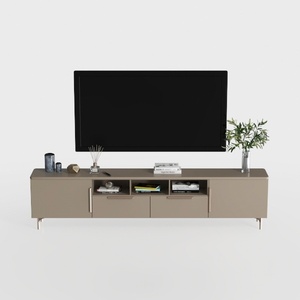
Modern Minimalist Solid Wood TV Stand Cabinet with Storage 3D Model
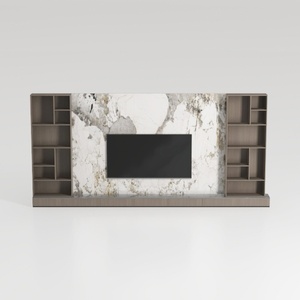
Modern Marble Solid Wood TV Wall Unit With Bookshelves 3D Model
Discover your inner designer with Homestyler! This user-friendly online platform offers a fantastic design tool, stunning 3D rendering, and an extensive collection of design projects and DIY video tutorials. Transform your home ideas into reality effortlessly—perfect for both novices and seasoned decorators!
Projete agora para LIVRE
































