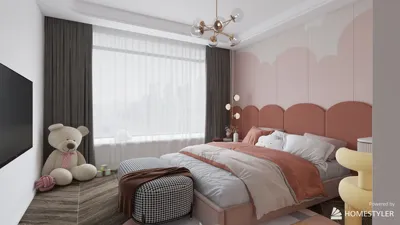


Incorporating 3D models into your desktop experience with Wallpaper Engine can significantly enhance the visual appeal and allow for distinctive, personalized backgrounds. While the process is straightforward, it involves several steps to ensure that your models are properly formatted and positioned. Let's explore the steps to import and configure your 3D models effectively in Wallpaper Engine!
Getting Started with Wallpaper Engine
Wallpaper Engine accommodates various content types, including videos, animated wallpapers, and interactive designs. One of the most captivating features is the ability to integrate 3D models created using software like Blender and Maya. Before you start, ensure that your 3D model is saved in a compatible format, usually either `.FBX` or `.OBJ`.
Step-by-Step Process for Importing 3D Models
1. **Prepare Your 3D Model**: If you haven’t done so already, create your model in a 3D software application. Optimize it for better performance by minimizing the polygon count and judiciously applying textures.
2. **Export the Model**: Once your model is finalized, export it in a suitable format. In most 3D programs, you can go to ‘Export’ and then select your desired file type.
3. **Launch Wallpaper Engine**: Open Wallpaper Engine and initiate a new wallpaper creation by choosing 'Blank Wallpaper' for full customization options.
4. **Import Your Model**: Click the 'Add' button in the wallpaper editor to upload your .FBX or .OBJ file. You can then modify the scale, position, and rotation to achieve your desired aesthetic.
5. **Set Up Animation (optional)**: If you want to add some motion, you can animate your model within Wallpaper Engine using a variety of built-in animation tools.
6. **Save and Share Your Work**: When you're happy with your setup, save your wallpaper. You also have the option to share it with the Wallpaper Engine community so others can experience your creativity!
Common Challenges and Solutions
If your model doesn’t appear as intended, revisit the following:
- Ensure the file format is compatible with Wallpaper Engine.
- Adjust the model’s scale if it appears excessively large or small.
- Check that the file path doesn’t include any special characters that could hinder the engine from locating your model.
FAQs
Q: What is the optimal file format for 3D models in Wallpaper Engine? A: The most recommended formats are .FBX and .OBJ, as they offer broad compatibility.
Q: Can I add animations to my 3D model in Wallpaper Engine? A: Yes, Wallpaper Engine has tools that allow you to animate your models, enabling you to craft dynamic wallpapers.
Q: Are there limitations on the complexity of 3D models I can use? A: Indeed, it’s vital to keep your models optimized to ensure smooth performance within Wallpaper Engine.
Homestyler is the ultimate online home design platform for anyone looking to transform their space. With its user-friendly design tool, stunning 3D renderings, and a wealth of DIY video tutorials, you can effortlessly create, visualize, and execute your interior design dreams. Get inspired today!
Projete agora para LIVRE
































