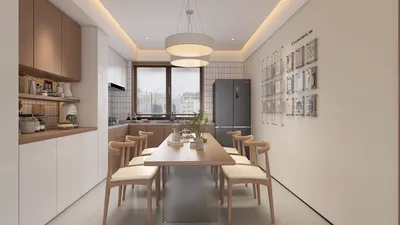


Crafting a 3D representation of a city can initially appear daunting; however, with strategic planning and the right software tools, you can effectively breathe life into detailed urban environments suitable for gaming, presentations, urban planning, or even augmented reality experiences. In my experience as a designer, the secret lies in merging creativity with functionality—starting from gathering reference materials to the actual digital modeling. This comprehensive guide will assist you in embarking on this journey, regardless of your level of expertise, while incorporating tools like Homestyler for optimal results.
Step 1: Research & Collect Resources
Before you dive into modeling, it’s essential to amass a wide array of city-related data. This can consist of satellite imagery, GIS datasets, architectural blueprints, maps, and street-level photographs. Resources are widely available through platforms such as Google Earth or local urban planning offices. A well-rounded collection of materials will guarantee that your model maintains both accuracy and realism.
Step 2: Select Your Modeling Software
Next, identify the most suitable 3D modeling software that aligns with your project scale and skill set. Notable tools include Blender (a free and open-source option), SketchUp (ideal for beginners), Autodesk 3ds Max, and Rhino. If you aim to create an interactive city model or experiment with rapid layout adjustments, consider utilizing a specialized 3D Floor Planner, like Homestyler, to streamline spatial organization and enhance visualization capabilities.
Step 3: Import or Develop the Base Map
Begin by importing your reference map or terrain data into your chosen modeling software. Many platforms enable you to overlay satellite images or topographical data, offering an accurate groundwork for laying out streets and positioning buildings. Ensuring the correct scaling and dimensions during this phase is crucial for maintaining proportionate representations.
Step 4: Construct the Terrain and Infrastructure
Start by modeling the ground features, including rivers, hills, parks, and essential infrastructure like roads and bridges. This foundational layout serves as the framework for all subsequent detailing. Utilize your gathered images to cross-verify features as you develop your model.
Step 5: Design Buildings and Major Structures
Following this, begin constructing buildings, prioritizing significant landmarks before moving on to smaller constructions. For efficiency and performance, utilize basic geometric shapes (such as cubes and rectangles) for less prominent structures, reserving intricate modeling for notable architecture. Employing modular building elements can enhance consistency across repeated designs.
Step 6: Apply Textures and Materials
To enhance the visual appeal of your city, apply various textures, including brick, glass, and asphalt for roads or roofs. You can source textures from online libraries, custom images, or procedural materials available within your software. Don’t overlook the importance of lighting—modeling realistic sunlight and shadows will significantly improve the overall quality of your renderings.
Step 7: Refine, Review, and Export your Model
Take the time to thoroughly review your model for accuracy, making necessary adjustments to proportions, alignments, or any missing elements. Depending on your intended use, export your model in formats compatible with visualization tools, game engines, or architectural walkthrough applications.
Tip 1:
For professionals like me, maximizing efficiency is vital. Utilizing a 3D floor planner, such as Homestyler, can dramatically reduce the time spent laying out city blocks or adjusting zoning. I frequently utilize these platforms not just for interior layouts but also to create intricate urban street grids and swiftly refine design concepts before proceeding to detailed modeling. Furthermore, tools like Homestyler come equipped with integrated libraries of city elements, which simplify the process for urban designers.
FAQ
Q: What software is considered best for 3D city modeling?
A: Top choices include Blender, SketchUp, Autodesk 3ds Max, and specialized city modeling tools like CityEngine. For effective layout planning, using a 3D floor planner, such as Homestyler, can be an excellent foundation.
Q: Where can I obtain reference maps or data for building my city model?
A: Reliable sources include Google Earth, OpenStreetMap, urban GIS databases, or local government planning offices which provide accurate map data and architectural blueprints.
Q: How can I make my 3D city model appear realistic?
A: Incorporate high-resolution textures, appropriate lighting, and attention to detail for major buildings. Adding greenery, vehicles, and street furniture will also significantly enhance realism.
Q: Is it possible to use a 3D city model in game development environments like Unity or Unreal?
A: Absolutely, just ensure to export your model in formats like FBX or OBJ that are compatible. Optimize your geometry and textures to guarantee performance.
Q: What level of detail should I aim for in my 3D city model?
A: This largely depends on the project requirements. For expansive cityscapes, simplify the geometry for background buildings while focusing on detailed representations for critical areas likely to be scrutinized closely.
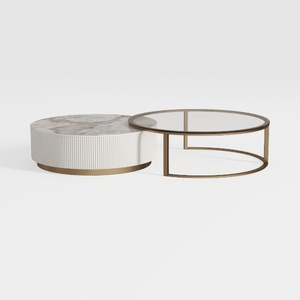

coffee table
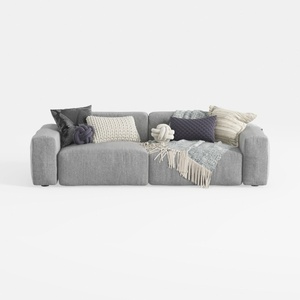
Minimalist Fabric Large Sectional Sofa with Decorative Pillows 3D Model

Modern Pink Velvet Curved 3 Seater Sofa with Decorative Throw Pillows 3D Model
Discover the magic of home design with Homestyler! This user-friendly online platform offers a versatile design tool, stunning 3D rendering, inspiring design projects, and helpful video tutorials. Whether you're a novice or DIY expert, you can effortlessly transform your space and bring your visions to life!
Projete agora para LIVRE
































