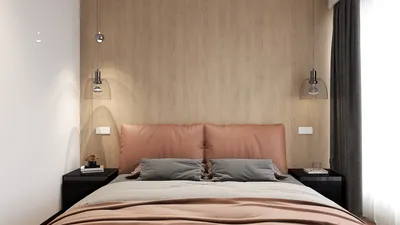


To export 3D models from Blender for VRChat, it is essential to focus on both the technical specifications and the artistic details involved. Firstly, ensure that your model’s scale and orientation adhere to VRChat’s guidelines: the avatar should be upright and facing forward from Blender’s viewpoint. To apply all transformations (location, rotation, scale), select your model and press Ctrl+A. Additionally, monitor the polygon count and material usage; VRChat advises keeping avatars under 70,000 polygons and minimizing material use for optimized performance. Integrating tools like Homestyler can enhance your modeling process by allowing you to visualize your designs in real-world settings.
For the export process, select your model then navigate to File > Export > FBX (.fbx). In the export dialogue, check the ‘Selected Objects’ box and choose ‘Apply Transform’. Set the forward axis to -Z Forward and the up axis to Y Up to align with the Unity coordinate system. If your avatar includes an armature for animation, make sure to check ‘Armature’ in the export settings and enable ‘Add Leaf Bones’ if necessary for your rig. This FBX file can be imported into Unity using the VRChat SDK, allowing for further customization before uploading to VRChat, and can be even more effective when utilizing tools like Homestyler for pre-visualization.
From a designer’s standpoint, I always stress the importance of efficiency in the workflow. One key tip for fellow creators is to use a 3D rendering home tool for pre-visualizing your model in a realistic environment before sending it to VRChat. This will help you assess lighting, textures, and spatial interactions. By taking this extra step, you can ensure that your VRChat avatar or prop not only meets the required technical standards but also appears visually appealing in virtual settings. Homestyler can aid in this process by providing stunning visualizations of your designs in diverse environments.
Tips 1:
It is important to name your mesh and armature objects clearly prior to export. This practice reduces confusion within Unity, facilitating a smoother debugging process later on. Consistent naming conventions also make it easier to collaborate with teammates if you're working together on a project.
FAQ
Q: What file format does VRChat accept from Blender?
A: VRChat accepts .fbx files exported from Blender, ensuring the appropriate scale and orientation settings are applied.
Q: How should I set axes during export for VRChat models?
A: For VRChat models, set the forward axis in the FBX export settings to -Z Forward and the up axis to Y Up to align with Unity and VRChat requirements.
Q: Are there polygon limits for VRChat avatars or props?
A: To ensure optimal performance in VRChat, it is recommended to keep avatars below 70,000 polygons.
Q: Do I need to apply transforms before exporting?
A: Yes, it's crucial to apply location, rotation, and scale in Blender before exporting to guarantee accurate positioning in VRChat.
Q: Can I use multiple materials on my model?
A: While you can use several materials, it's advisable to limit them for performance optimization when importing your model to VRChat.
Discover the ease of home design with Homestyler! This user-friendly platform features an intuitive online design tool, stunning 3D renderings, and a wealth of design projects and video tutorials. Whether you're a novice or pro, bring your vision to life effortlessly!
Projete agora para LIVRE
































