

Are you interested in opening 3D models using Photoshop? This comprehensive guide will lead you through the straightforward process of importing and manipulating 3D files within Adobe Photoshop. With just a few simple clicks, you can breathe life into your designs and add a new dimension to your projects, particularly when complemented by tools like Homestyler.
Grasping 3D Models in Photoshop
Adobe Photoshop provides a powerful set of tools for 3D modeling, allowing designers to effortlessly work with multiple file formats. Among the commonly supported formats are OBJ, DAE, and 3DS. Before you proceed with the steps, double-check that your model is saved in a compatible format, as this will enhance your workflow significantly.
Whether your aim is to utilize a 3D printing service or enhance your graphic designs, mastering the manipulation of 3D models can greatly elevate your project results. Being adept at these processes can add considerable depth and intricacy to your design work, making it more appealing and effective.
Step-by-Step Guide to Importing 3D Models
1. Begin by launching Adobe Photoshop. Make sure you are using a version that supports 3D capabilities, such as Photoshop CC or later editions.
2. From the menu bar, click on 'File'. Then select 'Import' and choose '3D Model'. This will prompt a file dialog box to appear.
3. Navigate to where your 3D model file is stored. Select the appropriate file and click 'Open' to bring it into your workspace.
4. After the model is imported, use the 3D panel to modify it. You have the ability to rotate, scale, and position your model as needed to achieve your design ambitions.
Refining Your 3D Model
Once your 3D model is open in Photoshop, you might want to make several adjustments for enhancing its visual appeal. Below are key modifications you can apply:
- **Material Modifications**: Access the 3D panel and choose 'Materials' to tweak colors, textures, and reflectivity, fine-tuning the model to align with your project’s theme and style, much like using features in Homestyler.
- **Lighting Adjustments**: Elevate the realism of your model by fine-tuning the lighting settings. Experiment with various light types and intensities to achieve your desired ambiance.
- **Rendering**: When you are pleased with your modifications, harness Photoshop's rendering capabilities. This step is crucial for finalizing the visual quality of your project and ensuring a professional finish.
Frequently Asked Questions
Q: Which file formats are compatible with opening 3D models in Photoshop?
A: Compatible formats encompass OBJ, DAE, 3DS, and others. Make sure your model is saved in one of these formats for a smooth importing process.
Q: Is it possible to export the 3D model after I've finished editing?
A: Absolutely! After you are done with your edits, you can export your model in various formats, which will enhance its usability across different platforms and applications, similar to how Homestyler functions in facilitating design.
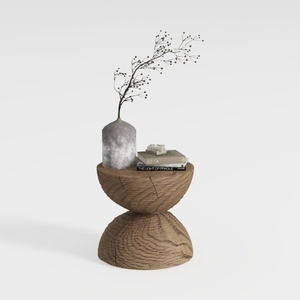
Minimalist Solid Oak Wood Side Table Unique Hourglass Shape 3D Model
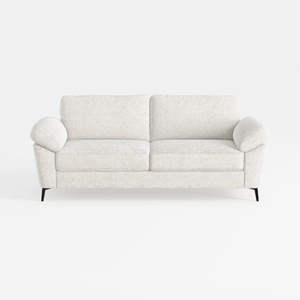
Minimalist Fabric Loveseat Sofa with Black Metal Legs 3D Model
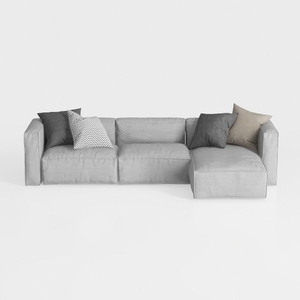
Minimalist Light Gray Fabric L Shaped Sectional Sofa 3D Model
Homestyler is your go-to online home design platform, perfect for anyone looking to transform their space. With its user-friendly design tool, stunning 3D renderings, diverse design projects, and comprehensive video tutorials, you’ll find everything you need to turn your visions into reality effortlessly!
Projete agora para LIVRE
































