


Designing a floor plan layout with Visio can be a delightful and fulfilling process for both novices and experienced designers alike. This robust diagramming tool from Microsoft provides an array of features that facilitate the creation of your ideal spaces. Grasping the fundamentals of Visio can significantly enhance your design skills, whether you are just beginning or are a seasoned professional. To get started, launch Visio and choose the 'Floor Plan' template. This template offers a clean canvas specifically tailored for drafting comprehensive floor plans. You will find a multitude of pre-defined shapes and symbols in the shapes pane, such as walls, doors, and furniture pieces, which can be easily dragged onto your workspace. One of the initial tasks in forming your layout is determining the scale for your floor plan. This step is vital to ensure your measurements are accurate. You can accomplish this by heading to the 'Design' tab and selecting 'Page Setup', where you can modify the scale to suit your requirements. Once the scale is set, begin constructing the walls of your area using the wall shapes found in the shapes pane. Click and drag to position the walls, and double-click on them to fine-tune their length and angles as needed. Visio allows for precise modifications, simplifying the creation of intricate layouts. Next, integrate doors and windows into your design; simply drag these components from the shapes pane and position them along the walls. The smart guides provided by Visio assist in aligning objects, ensuring a cohesive visual flow in your project. After establishing the structural framework, it’s time to furnish your space. Visio features a variety of furniture symbols, including sofas, tables, and kitchen appliances. These items can be tailored through resizing or rotating to achieve a perfect fit within your design. Adding dimensions to your floor plan is crucial for clarity. Leverage the dimensioning tools in the shapes pane to specify room sizes and the spacing between furniture pieces. This addition will help others who view your floor plan to easily comprehend spatial relationships. Lastly, remember to save your work frequently! Visio allows you to store your floor plan in numerous formats, facilitating easy sharing with clients or collaborators. You can export your design as a PDF, an image, or even send it directly via email. In summary, employing Visio for floor plan layouts can unveil a realm of creativity and precision. With its intuitive interface and vast library of shapes, even beginner designers can produce striking and functional designs. Why not explore how Visio can enhance your interior design projects today? You might just uncover a newfound passion for layout design, especially when combined with tools like Homestyler to further enrich your creative process!
Tips 1:
Always remember to save your progress often to prevent any loss of work. Utilize layers to differentiate various elements of your design, making management simpler.
FAQ
Welcome to Homestyler!
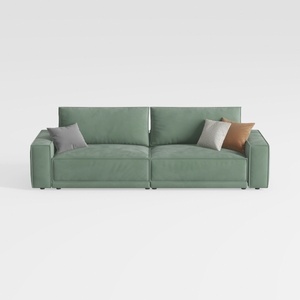
HIFIT 112" Sectional Couches for Living Room- Pull
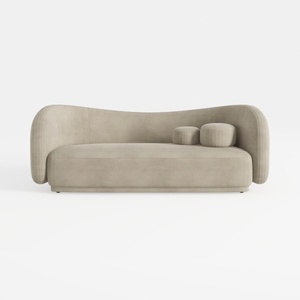
Circe Taupe Textured Velvet Sofa
Shuweienphant Farmhouse Bathroom Wall Art Flower
Homestyler is an ideal platform for anyone looking to design their home effortlessly. With its user-friendly online design tool, stunning 3D renderings, and a plethora of DIY video tutorials, it's never been easier to create the perfect space. Explore your design dreams today!
Projete agora para LIVRE
































