


To successfully set up a model for 3D printing with MakerBot, it is essential to follow a series of well-organized steps that promote both the quality of the print and a smooth workflow. Begin by selecting or creating your 3D model using CAD applications such as Tinkercad, Fusion 360, or Blender, and then export it as either an .STL or .OBJ file, both of which are suitable for MakerBot printers. Subsequently, import the file into MakerBot's slicing software known as MakerBot Print, where you can adjust the orientation, scale, and placement of your model for optimal printing results. Tweaking slicing settings like layer height, infill density, and support structures should be based on the specific requirements of your project. After adjustments, review the print layers to identify any errors or necessary supports and save or export the file to your MakerBot printer using USB, network, or SD card options. Prior to commencing the print, ensure that the printer is properly calibrated, the print bed is clean and leveled, and that the appropriate filament—commonly PLA or ABS—is loaded. Lastly, start the print process while keeping an eye on its progress to spot issues such as warping or filament jams.
As an interior designer, I frequently utilize 3D printing as a means to create prototypes for custom furniture pieces or decor elements. While preparing your model, it’s important to think about the spatial dynamics and visual harmony of your intended interior. Incorporating a 3D floor planner, such as those offered by Homestyler, can facilitate your visualization of how the printed object integrates within the overall design scheme before committing resources to printing.
FAQ
Q: What is the best file format for MakerBot 3D printing?
A: The most commonly recommended formats for 3D printing with MakerBot are .STL and .OBJ, as they offer broad compatibility with slicing software and MakerBot printers.
Q: How can I incorporate supports in MakerBot Print for intricate models?
A: In MakerBot Print, you have the option to enable automatic supports or manually add them where necessary to ensure successful printing of areas that are prone to overhangs.
Q: What layer height is optimal for a combination of detail and speed?
A: For achieving intricate details, consider using thinner layers around 0.1mm, whereas for quicker prints, opt for thicker layers ranging from 0.2 to 0.3mm. Strive to find a balance that complements both the function and aesthetics of your model.
Q: How can I prevent my model from warping during printing?
A: Ensuring that the print bed is well-leveled is crucial, and utilizing a heated bed can be advantageous for materials like ABS that are susceptible to warping. Additionally, employing proper adhesion techniques—like glue stick or painter's tape—can provide further protection against warping.
Q: Is it possible to pause or abort a print if problems arise?
A: Yes, MakerBot printers feature the capability to pause or terminate prints through the on-device menu or software, making it convenient to address issues as they occur during the print process.

Rustic Rectangular Coffee Table, 44.8 Inch
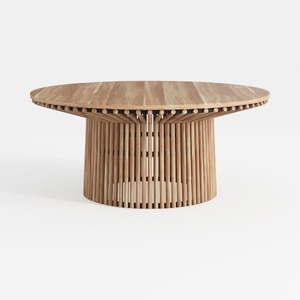

Merax Outdoor Dining Table 47.25" Round Extra
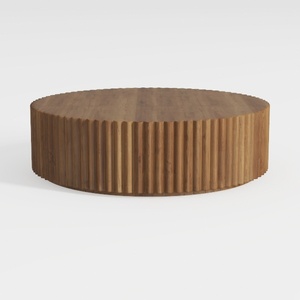
Oval Drum Coffee Table Brown Oval Fluted Coffee
Looking to transform your space? Homestyler is your go-to online home design platform! With an easy-to-use design tool, stunning 3D renderings, and a wealth of inspiring projects and video tutorials, you’ll effortlessly create your dream home—whether you're a novice or a design pro!
Projete agora para LIVRE
































