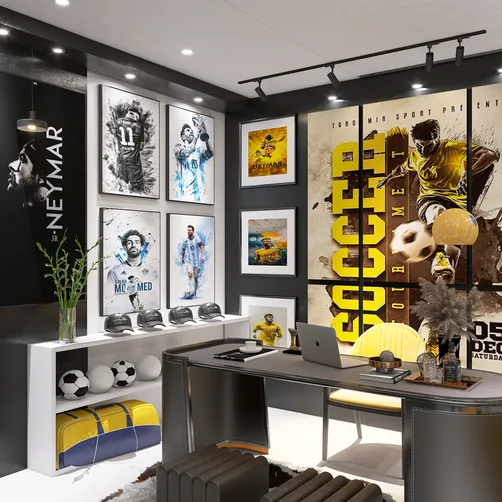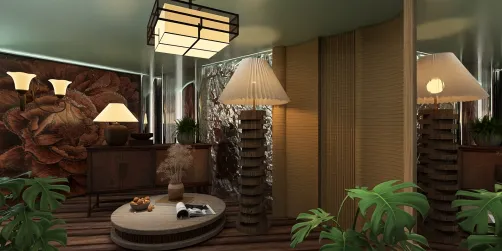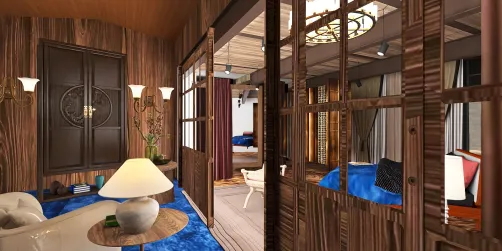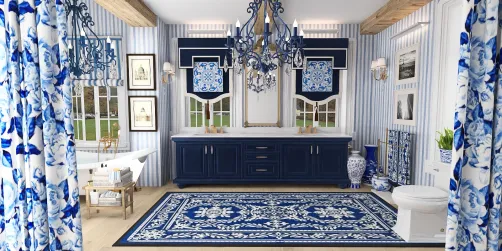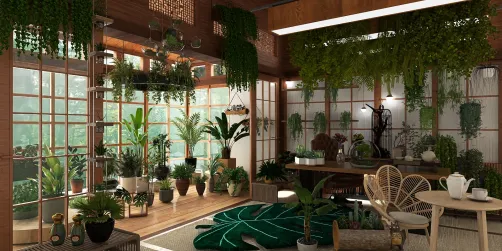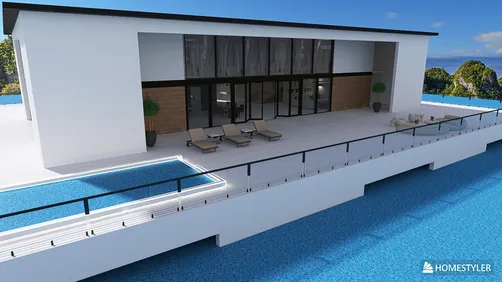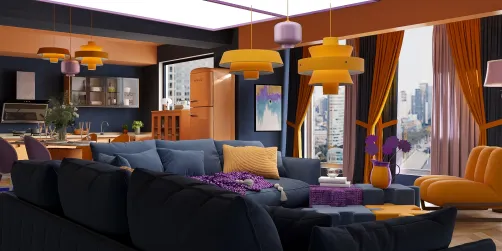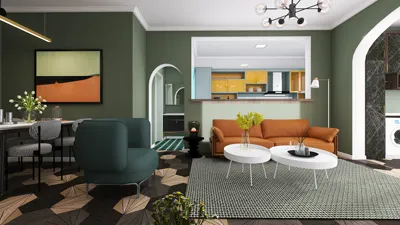
Designing textures for 3D models using Photoshop is an essential aspect of creating immersive digital environments and objects. Regardless of whether you're new to 3D art or a veteran artist, Photoshop provides a comprehensive set of tools that facilitate the creation of realistic or stylized textures. This guide outlines a methodical approach that merges fundamental techniques with valuable design insights.
In my experience as a designer, I’ve discovered that meticulously crafted textures are just as important as the 3D model itself; even basic shapes can achieve a sense of depth and authenticity with the appropriate surface treatment. For those looking to optimize their workflow, consider utilizing digital platforms focused on 3D render home design, which effectively integrate texture creation and visualization tools, significantly enhancing the importing and testing process for users. A great option to explore for this purpose is Homestyler, which simplifies these tasks.
Tips 1:
Utilize Photoshop’s Smart Objects for non-destructive editing. This feature allows you to play around with texture overlays and modifications without altering your original artwork, which is particularly beneficial for refining complex surface patterns.
FAQ
Q: Can I use any image as a texture in Photoshop?
A: Absolutely, provided you have the rights to use the image. High-resolution images yield the best outcomes, and employing adjustment layers allows you to color-correct and blend them seamlessly into your texture map.
Q: How can I avoid visible seams on my 3D model?
A: Ensure that you pay attention to your UV layout to reduce stretching and overlapping. In Photoshop, tools like the Clone Stamp and Healing Brush can be used along UV edges to create seamless transitions.
Q: What file format is best for saving textures?
A: PNG is generally preferred as it maintains lossless quality and supports transparency. JPEG is suitable for diffuse textures when file size is a concern but should be avoided for normal or alpha maps.
Q: Can Photoshop generate normal or bump maps?
A: Yes, you can create normal and bump maps directly in Photoshop using the “3D” menu or through external plugins such as NVIDIA’s Texture Tools, which allow conversion from your color textures.
Q: How do layered textures enhance 3D design workflows?
A: Layered files enable you to modify specific elements (such as dirt, wear, or color) quickly without the need to repaint the entire texture, thereby accelerating revisions and providing greater control over your final visual output.
Discover Homestyler, the ultimate online home design platform! With its user-friendly design tool, stunning 3D renderings, and a wealth of DIY video tutorials, it empowers you to transform your living space effortlessly. Whether you're a novice or a pro, Homestyler brings your design ideas to life!