


Direct Answer
To enhance AutoCAD's efficiency when handling intricate 3D floor plans, it's essential to lower geometry complexity, strategically organize layers, utilize blocks for repetitive components, tweak graphics settings, and keep files well-structured. Implementing these approaches significantly minimizes lag and boosts navigation speed in extensive architectural models.
Quick Takeaways
Introduction
From experience with numerous residential and commercial designs, a recurring issue arises among architects and designers: AutoCAD tends to slow down noticeably as 3D floor plans exceed certain complexity thresholds. Tasks like door operations lag, orbiting becomes choppy, and minor edits take noticeably longer than expected.
Often, the root of these performance drops is not subpar hardware but inefficient modeling practices that increase geometry, layer counts, and calculation overhead.
When detailed interiors, multiple floors, furniture, lighting, and materials are incorporated, the problem often escalates. Many designers resort to visualization platforms or simplified layout tools for initial planning stages to avoid heavy AutoCAD geometry load.
However, for those who complete the entire workflow within AutoCAD, several trustworthy methods maintain smooth operation even with complex architectural models. These tactics are drawn from real-world production environments.
Why Large 3D Floor Plans Slow Down AutoCAD
Insight: AutoCAD's slowdown results from excessive geometry computations, not just the sheer size of the model.
It's a common misconception that file size is the main factor affecting performance. Actually, complex geometry increases the vertex count that AutoCAD must process incrementally.
Typical culprits include high-polygon curved surfaces, detailed furnishings, and imported objects.
In one residential example, a single imported sofa had over 120,000 polygons. Replacing it with a simplified block immediately enhanced orbit responsiveness.
This practice underlies why professional CAD teams maintain multiple model versions.
Such separation substantially cuts viewport lag.
Best Layer Management Strategies for 3D Models
Insight: Efficient layer organization lowers the count of objects that AutoCAD renders simultaneously, improving performance.
Managing layers isn’t solely about orderliness; it's vital for performance as AutoCAD only displays visible layers.
A practical layering approach for sizable architectural models involves grouping elements logically.
During edits, professionals often freeze non-critical layers such as furniture or lighting, instantly reducing visible object counts.
Employing Layer States to save and recall visibility presets further accelerates workflow across design phases.
Reducing Polygon and Object Complexity
Insight: Simplifying model components often surpasses hardware upgrades in boosting AutoCAD's performance.
Importing extremely detailed external models—usually designed for rendering rather than CAD—commonly degrades performance.
Recommended practices include reducing segment counts on curved elements without compromising visual fidelity.
For instance, a circular column with 64 segments can often be simplified to 16 with no perceivable difference in architectural views.
Many teams validate initial layouts using lighter planning tools, such as interactive room planners, before reconstructing final models in AutoCAD.
This workflow minimizes redundant modeling efforts and maintains lighter CAD file sizes.
Using Blocks and Components Efficiently
Insight: Utilizing blocks reduces memory consumption as AutoCAD references a single definition rather than replicating geometry multiple times.
For example, if a design includes 120 identical chairs modeled individually, AutoCAD processes each separately. If these chairs are blocks, only one geometry definition is referenced.
Best practices recommend employing blocks extensively for repetitive architectural elements.
In office layouts, block usage for workstations can diminish entity counts by tens of thousands.
This approach frequently produces the largest performance improvements in complex architectural models.
Graphics Settings That Improve 3D Performance
Insight: Proper graphics configuration can potentially double navigation speeds in large 3D models.
AutoCAD provides multiple options explicitly geared toward optimizing real-time rendering.
Key settings to adjust include visual styles and hardware acceleration parameters.
Many users unknowingly operate in "Realistic" visual style, which continuously computes materials, lighting, and reflections, taxing performance.
Switching to Wireframe view during modeling can significantly enhance responsiveness and reduce lag.
Answer Box
To rapidly optimize AutoCAD performance on complex 3D floor plans, focus on minimizing geometry complexity, converting repeated elements into blocks, and hiding non-essential layers during editing. These strategies typically eliminate most lag problems in substantial architectural files.
File Organization Tips for Large Architectural Projects
Insight: Large-scale projects achieve better performance when split into logical, manageable files rather than contained in one massive drawing.
Professional teams generally avoid storing entire buildings in a single AutoCAD file, instead opting for modular project structures.
Common workflows involve breaking projects into components and linking via external references (Xrefs). This keeps individual files more lightweight and easier to edit.
Early-stage spatial planning often involves prototyping layouts with tools that quickly generate spatial concepts, such as AI-driven floor planning applications, before recreating detailed geometry in AutoCAD.
Such processes prevent excessive modeling overhead and maintain manageable CAD files throughout the project lifecycle.
Final Summary
FAQ
Why does my AutoCAD 3D model run slowly?
Sluggishness usually stems from high-polygon objects, exploded blocks, or too many visible layers. Simplification of geometry and hiding unneeded layers often resolve the issue.
How can I accelerate AutoCAD for large floor plans?
Employ blocks for repeated components, decrease curved geometry segments, freeze unused layers, and switch to Wireframe mode during edits.
Does file size impact AutoCAD performance?
Less so than geometry complexity; smaller files with dense meshes can be slower than larger, simpler ones.
Which visual style is best for AutoCAD efficiency?
2D Wireframe or Conceptual styles are optimal for modeling, while Realistic styles are best suited for final presentations.
Is there a recommended maximum for AutoCAD layers?
No strict limit exists, but disorganized layers can complicate editing. Group layers logically and freeze those not currently needed.
Can hardware upgrades solve AutoCAD lag?
Upgrades help, but model and workflow optimizations typically yield greater performance enhancements.
Should meshes be used in AutoCAD architectural models?
Generally avoided, as meshes increase processing demands and are better reserved for rendering applications.
What’s the best approach to optimizing AutoCAD files for complex buildings?
Reduce polygon detail, utilize blocks, manage layers carefully, and divide large projects into external reference files.
Incorporating tools like Homestyler in early design stages can complement AutoCAD workflows by enabling quick spatial planning with minimal geometry, enhancing overall productivity and model manageability.

Minimalist Concrete Large Planter Pot with Greenery 3D Model
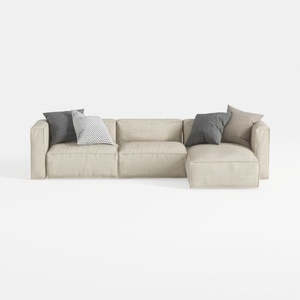
Minimalist Fabric L Shaped Sectional Sofa with Throw Pillows 3D Model


Minimalist Cream Fabric Modular Sectional Sofa 3D Model
Homestyler offers an easy-to-use online design tool coupled with stunning 3D renderings and a vast collection of interior projects. With helpful DIY video tutorials, it’s ideal for anyone looking to create and visualize beautiful home designs effortlessly.
Projete agora para LIVRE
































