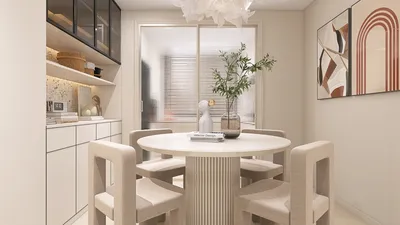


When setting up projectors in conference rooms, I focus on balancing image clarity, ergonomic seating, lighting control, and an intuitive workflow. The objective is straightforward: ensure that every participant sees vividly, every voice is audible, and every presenter feels empowered. In my recent projects, I've relied on empirical standards and behavioral insights, eliminating uncertainties. Research from Steelcase shows that 70% of employees experience increased engagement when visibility and seating comfort are harmonized, underscoring the importance of integrating screens and seating into a cohesive experience. The WELL v2 guidelines also emphasize how controllable glare and lighting enhance cognitive function, connecting light quality with visual comfort and alertness. I often recommend using tools such as Homestyler for room layout simulations to visualize these elements in a practical context.
The foundation of effective viewing lies in data regarding size and sightlines. A universal principle in audio-visual planning states that the farthest viewer should be within six times the height of the image for detailed content, while the closest viewer should be positioned at least 1.5 times the image width to minimize excessive head movement. I integrate room acoustics and appropriate lighting into the design: adhering to IES standards helps achieve the ideal vertical illuminance around the screen, preserving contrast and avoiding glare on the projection surface. In terms of ergonomics, research by Herman Miller highlights that views exceeding 30 degrees off-axis can lead to discomfort, prompting me to arrange seating arcs to reduce neck strain.
Screen Dimensions, Projection Distance, and Seating Arrangement
For mid-sized conference rooms accommodating 20 to 30 seats, I typically suggest a diagonal projection screen measuring between 110 and 130 inches, with the back row positioned 18 to 22 feet from the image source. Short-throw lenses are advantageous in compact spaces but require careful geometry adjustments; meanwhile, long-throw lenses diminish presenter shadowing and reduce cable clutter. I prefer to layout seats in staggered arcs to maintain sightlines under 30 degrees off-center and ensure a comfortable space of 18 to 22 inches shoulder width per seat. By utilizing a layout simulation tool like Homestyler, I can efficiently visualize angles and sightlines before installation.
Managing Light, Contrast, and Glare
For successful projection, contrast is essential. I aim for ambient light levels between 30 and 50 foot-candles in the room while reducing vertical illuminance on the screen wall to maintain depth in darker images. Employing dimmable LED fixtures with a color temperature of 3000 to 3500K helps preserve natural skin tones and minimizes eye strain. Additionally, I incorporate zoned lighting—task lights at tables, wall washers along side walls, and blackout or dual-layer shades to manage daylight. Controlling glare is also crucial; using matte wall finishes, steering clear of gloss surfaces along the projection path, and keeping downlights off-screen enhance the viewing experience. The WELL v2 framework supports these lighting choices, promoting overall comfort and focus. In the larger context of workspace design, Gensler's studies indicate a growing demand for versatile collaboration spaces, where adaptable lighting directly correlates to enhanced productivity.
Projector Specifications: Brightness, Resolution, and Color Fidelity
Brightness should be regarded as a functional aspect rather than just a specification. For controlled environments, 3,000 to 4,000 lumens suffice for a 110 to 120-inch screen, whereas brighter settings may require over 5,000 lumens. I generally recommend 1080p for standard presentations, while 4K is advisable for intricate CAD designs or data dashboards that necessitate superior detail. Laser light engines not only provide consistent brightness over time but also feature faster startup and reduced maintenance compared to traditional lamp-based projectors. Equally important is color accuracy—look for projectors compatible with sRGB or Rec.709 standards and pair them with neutral screens to avoid color distortion. Following installation, I calibrate white balance and gamma, saving presets for "Presentation" and "Video" modes to ensure uniform output.
Screen Type and Optimal Placement
To achieve the best performance, fixed-frame screens provide superior geometric stability; tensioned pull-down options are practical alternatives. I recommend selecting a gain between 1.0 and 1.2 to ensure balanced brightness and optimal viewing angles. It’s essential to position the screen center approximately 42 to 48 inches from the floor, adjusting for average seated eye levels. Avoid mounting screens above reflective surfaces like credenzas. For elongated rooms, a slightly higher gain may be necessary, and ceiling mounting the projector with accurate lens shift is critical, as relying on excessive keystone adjustments can compromise image quality.
Sound Quality, Microphones, and Noise Management
The audiovisual experience hinges on sound clarity. I target reverberation times around 0.5 to 0.7 seconds in meeting spaces, implementing acoustic panels, carpet tiles, and soft wall finishes to enhance acoustics. Proper microphone placement is vital; whether using table array or ceiling beamforming microphones, they should be positioned to avoid projector exhaust noise. If HVAC vents are nearby, incorporating diffusers and managing airflow speed is advisable to keep background noise levels in check. Employing a balanced audio system with distributed speakers helps minimize audio hotspots, ensuring even sound distribution throughout the room.
Cabling, Connectivity, and Control Systems
Establishing reliable connectivity starts with securing multiple access points: ceiling-mounted HDMI connections for fixed setups, table hubs featuring USB-C/HDMI, and wireless options for guests. I utilize professional-grade switchers to ensure cable runs remain tidy and shielded; avoiding overly long HDMI runs without active repeaters is crucial. A simple touch control panel enables users to manage inputs, volume, lighting presets, and blank screen features. Labeling ports and providing a quick-use guide near the presenter enhances usability. Organizing cables under tables aids in maintaining a clean space and prevents tripping hazards.
Ergonomic Considerations and Human Factors
The link between comfort and attention span is undeniable. Seats should support a neutral posture during presentations, and screens should be positioned to avoid head tilts exceeding 10 to 15 degrees during extended use. I remain mindful of human factors: clear pathways, easy access to power outlets, and consistent table height. Subtle aspects of color psychology play a role; using calming muted blues and greens alongside energizing warm accents can benefit concentration while avoiding distractions from the screen. It's best to steer clear of vibrant reds on front walls, as they may detract from the perceived sharpness of images and increase anxiety during long sessions.
Essential Setup Checklist
- Validate projection distance, screen dimensions, and lens adjustments according to manufacturer specifications.
- Measure brightness relative to ambient light, assessing foot-candles at tables and the screen wall.
- Arrange seating arcs to reduce off-axis angles; ensure legibility for small text from the back row.
- Adjust color settings and projector geometry; save presets for both presentation and video modes.
- Implement lighting zones and glare control; perform shade tests during midday.
- Set microphone levels and echo cancellation; monitor background noise levels for clarity.
- Clearly label inputs and provide a concise user guide; test wireless casting with guests.
- Conduct a complete mock meeting, soliciting feedback from participants across all seating areas.
Common Challenges and Their Solutions
- To correct washed-out images, increase contrast by dimming lights and checking screen gain settings.
- If shadows appear on screen, consider repositioning the projector to the ceiling or adjusting the presenter's area.
- Avoid digital keystone adjustments by relying on proper mounting and lens shift for cleaner projections.
- For messy cables, utilize under-table conduits and a centralized tabletop hub to streamline organization.
- To reduce audio echo, introduce soft finishes and adjust digital signal processing settings for clearer speech.
- To ease eye strain, lower the color temperature to between 3000 and 3500K and minimize glare.
FAQ Section
A diagonal measurement of 110 to 120 inches typically ensures legibility of fine text, aligning with the guideline that the farthest viewer should be within six times the image height for detailed content.
Expect to have 5,000 or more lumens for a 110 to 130-inch screen, complemented by adjustable shades and zoned lighting to achieve optimal contrast.
For general presentations, 1080p suffices; however, opt for 4K if you frequently present dense graphics or small text that benefits from high pixel density.
Managing glare involves using matte paint, avoiding downlights aimed at the screen, and maintaining a color temperature of 3000 to 3500K. Employing shades or dual-layer blinds can help control daytime glare.
Maintain viewing angles within 30 degrees off-axis and head tilt below 10 to 15 degrees. Ergonomic seating and staggered arrangements effectively reduce neck strain and fatigue.
While shadows can occur, positioning the presenter carefully away from the screen—coupled with ceiling-mounted options—provides a more effective solution.
It's crucial to equip the setup with connectors including table hubs featuring USB-C/HDMI, a ceiling input for fixed sources, and wireless capabilities. Label all connections and use under-table wiring channels.
Aim for a reverberation time of around 0.5 to 0.7 seconds with the use of soft finishes, keeping background noise below NC levels of 35 to 40 and ensuring microphone placement is strategic and away from any noise sources.
A gain rating between 1.0 and 1.2 typically strikes a balance between brightness and viewing angles for most settings. For long, brightly lit rooms, a higher gain may improve visibility but might narrow the viewing angles.
The WELL v2 standards provide strong guidance on glare management and light zoning, while IES standards inform considerations surrounding illumination and contrast for optimal visual comfort.
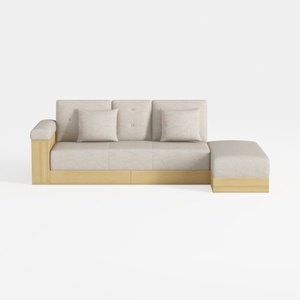
Minimalist Linen Solid Wood Sectional Sofa 3D Model

Minimalist Solid Wood Fabric L Shape Sectional Sofa 3D Model
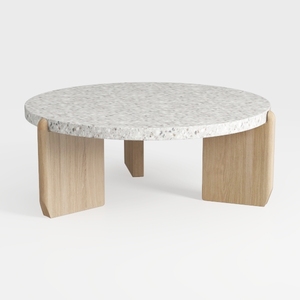
Minimalist Terrazzo Solid Oak Round Coffee Table 3D Model
Homestyler is an outstanding online platform for anyone looking to transform their space. With its easy-to-use design tool, impressive 3D renderings, and a wealth of inspiring design projects and video tutorials, it empowers you to craft your dream home effortlessly.
Projete agora para LIVRE
































