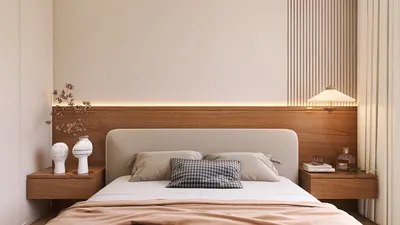


Have you ever found yourself engrossed in a 3D model within Revit, only to be puzzled about how to revert to a floor plan view? This is a common concern among users. Fortunately, shifting from 3D perspectives to floor plans in Revit is a simple process that is vital for effective project management. In this article, we will outline the necessary steps to facilitate this transition, ensuring your workflow remains seamless and efficient while utilizing tools like Homestyler.
Understanding the Different Views in Revit
Revit offers a multitude of views, encompassing both 3D and floor plan perspectives, designed to aid in visualizing your designs. Floor plans are crucial for outlining spatial arrangements, while 3D perspectives provide insight into the comprehensive shape of your design. To switch from a 3D view to a floor plan, simply follow these straightforward steps.
Steps to Switch from 3D View to Floor Plan
1. **Access the Project Browser:** On the left-hand side of your Revit interface lies the Project Browser, where all your views, sheets, and other components are organized.
2. **Choose the Floor Plan View:** Within the 'Views' category, navigate to the 'Floor Plans' section and select the specific floor plan you wish to display.
3. **Double-click the Floor Plan:** By double-clicking the name of the floor plan, you will swiftly switch to the selected view in Revit.
4. **Modify Your View Settings:** After entering the floor plan view, you might want to fine-tune the visibility settings or other view configurations to meet your requirements.
5. **Return to 3D View as Required:** You can easily go back to your 3D view by following the same steps in the Project Browser.
Tips for Navigating Efficiently
Frequent transitions between views are a natural part of the design process. Get familiar with keyboard shortcuts and consider customizing your interface for faster access to your commonly used views. This practice can significantly boost your productivity, especially when working with platforms like Homestyler.
Frequently Asked Questions
1. **Is it possible to view multiple floor plans simultaneously?** Absolutely! You can open several views by right-clicking on your desired view in the Project Browser and selecting 'Open in New Window.'
2. **What should I do if my floor plan isn't displayed correctly?** Double-check your view settings to ensure the correct level is selected in the view properties.
Explore the Features of Homestyler: Your Free 3D Floor Planner

Homestyler is your go-to online home design platform, perfect for anyone looking to create stunning interiors. With its user-friendly design tool, impressive 3D renderings, and a wealth of DIY video tutorials, you can easily turn your design dreams into reality. Explore, create, and inspire!
Projete agora para LIVRE
































