
Want to quickly design a master-level garden landscape? Homestyler introduces the brand-new AI Flower Border feature!
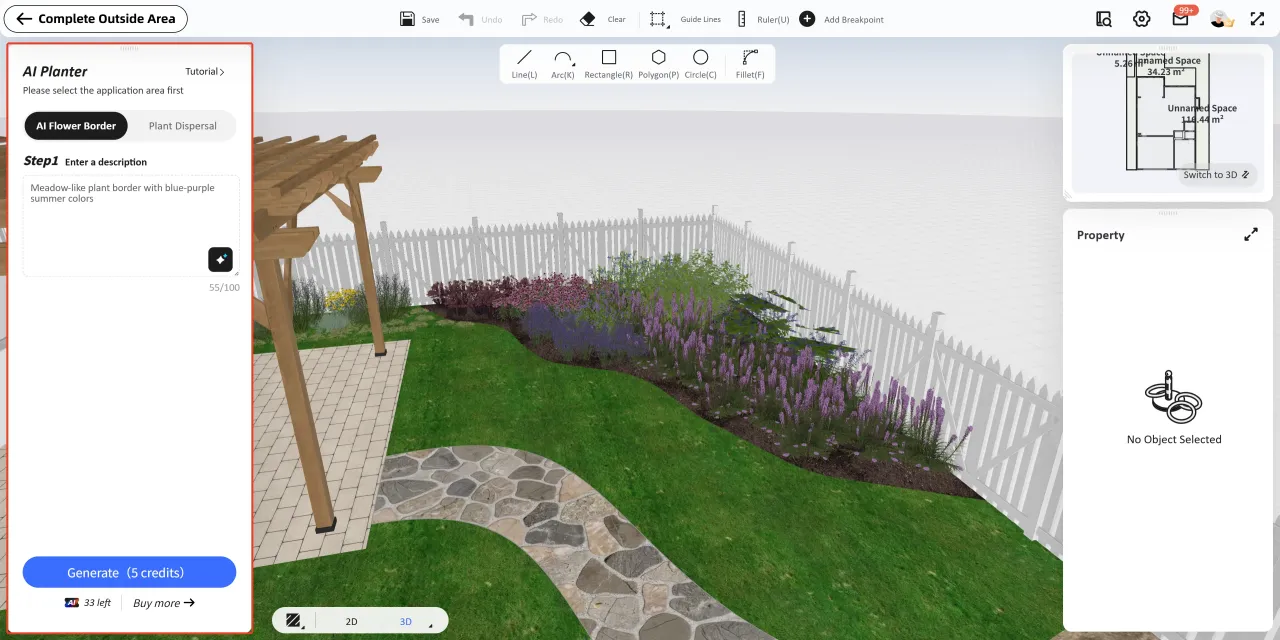
Simply enter a basic text description, and the AI will smart-select plants and dynamically arrange the layout based on the area size. Say goodbye to tedious manual placement and significantly boost your outdoor landscape design efficiency.
📍 Function Access
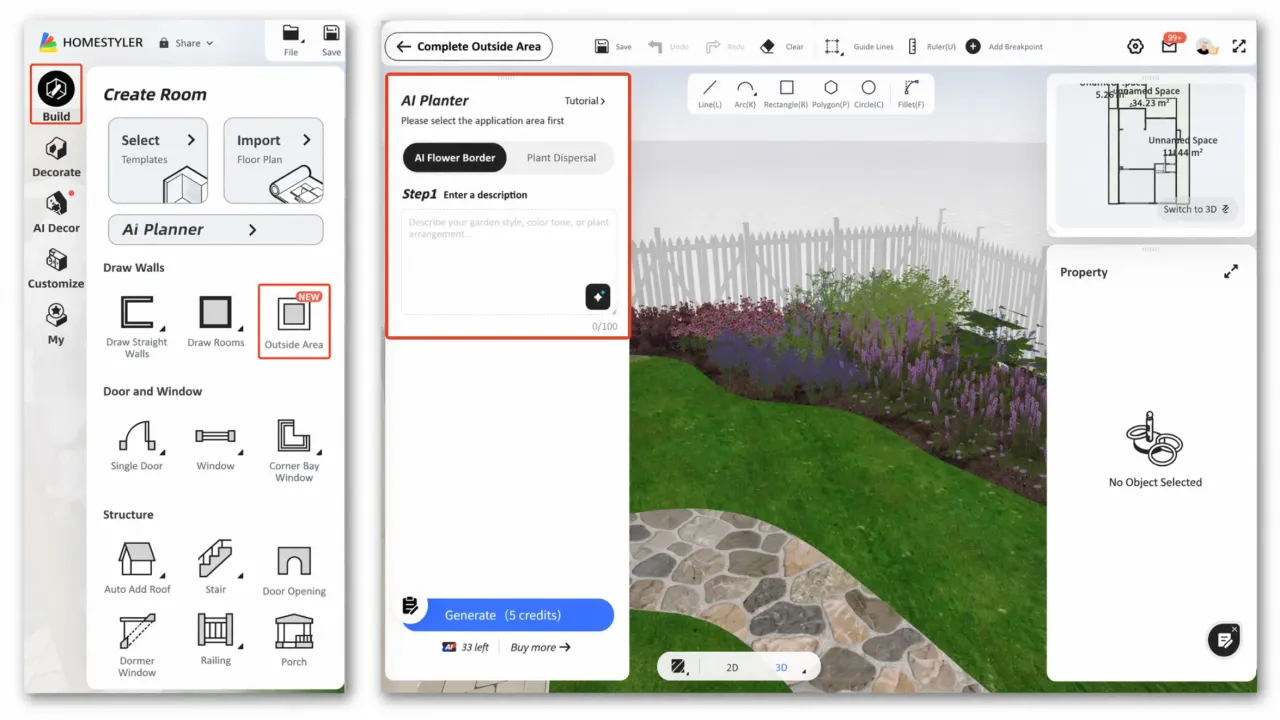
Open your design project, and click Build > Outside Area on the left navigation bar to enter the outdoor design interface. Under the AI Planter panel, you will find the newly added AI Flower Border feature.
🛠️ Flower Border Generation Steps
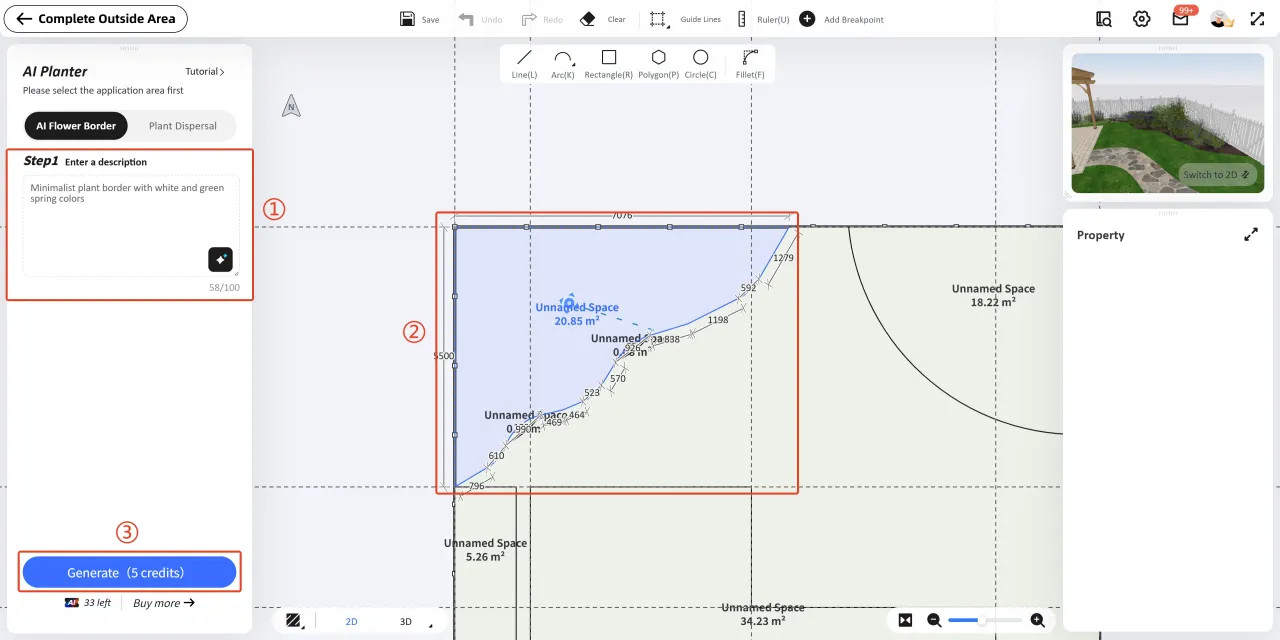
Step 1: Enter a Prompt
Input your vision for the flower border in the text box. We recommend using the golden structure: "Color + Season + Style + Plant Type".
Example: "A flower border in blue and yellow summer tones."
Inspiration: You can also click the Inspiration icon in the bottom right corner of the input box to get creative description recommendations suggested by AI with one click.
Step 2: Draw and Select Area
Draw or select the area on the canvas where you want to place the flower border .
(⚠️ Note: The selected area size for a single generation must be ≤ 1076 ft² or ≤ 100 ㎡)
Step 3: Click Generate
Select the area, then click the Generate button below. Each generation will consume 5 credits. The AI will dynamically arrange the most suitable plant landscape according to the boundary contour of the area.
✍️ Modifying and Fine-Tuning the Border
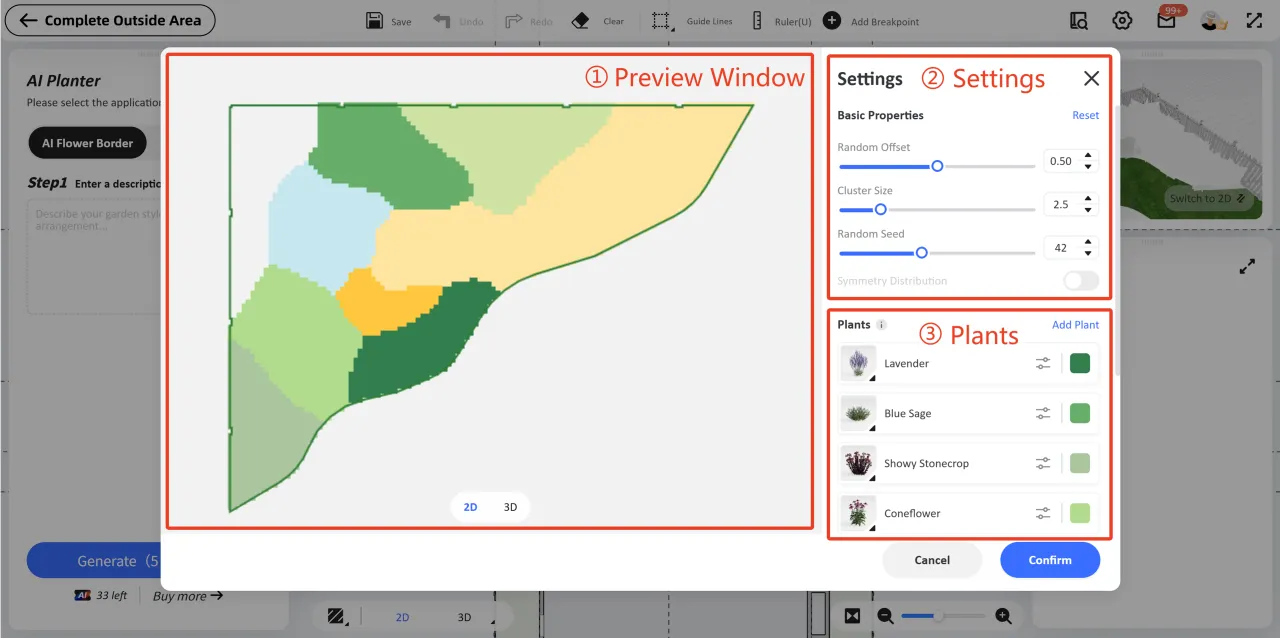
The generated flower border supports detailed secondary editing. Switch to the 2D view, select the flower border area, and click Edit Flower Border from the popup floating menu to modify it. The editing panel consists of the Preview Window, Settings, and Plants.
1. Preview Window
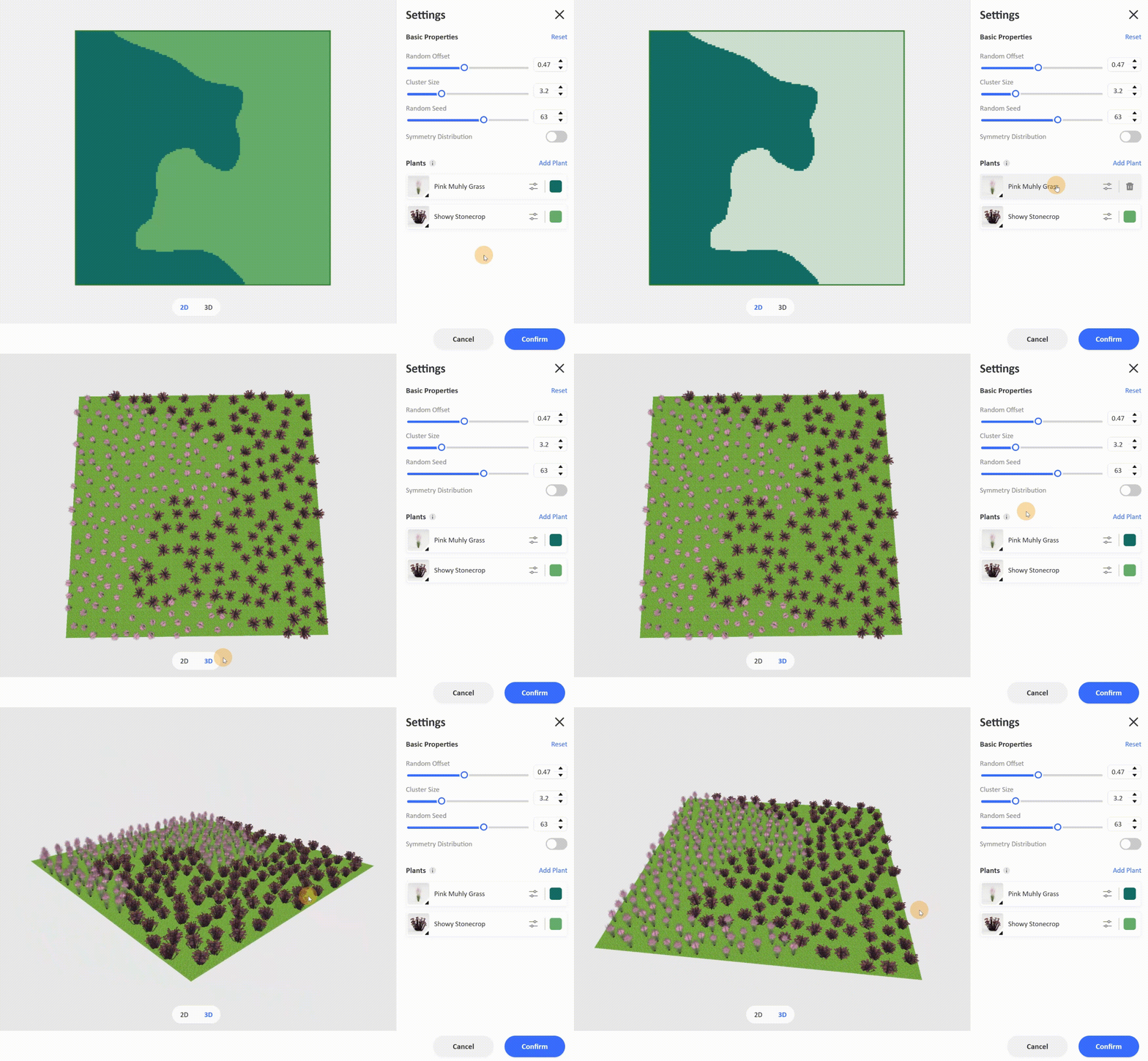
The left side of the popup window shows a color-block distribution preview (where each color block corresponds to a plant species). It supports switching freely between the 2D / 3D views at the bottom to observe the three-dimensional plant distribution in real-time. Hovering your cursor over the right plant list will highlight the distribution area of that plant in the left preview window.
2. Settings
The Settings panel offers features such as random offset, random seed, and symmetry distribution to assist you in creating your flower border.
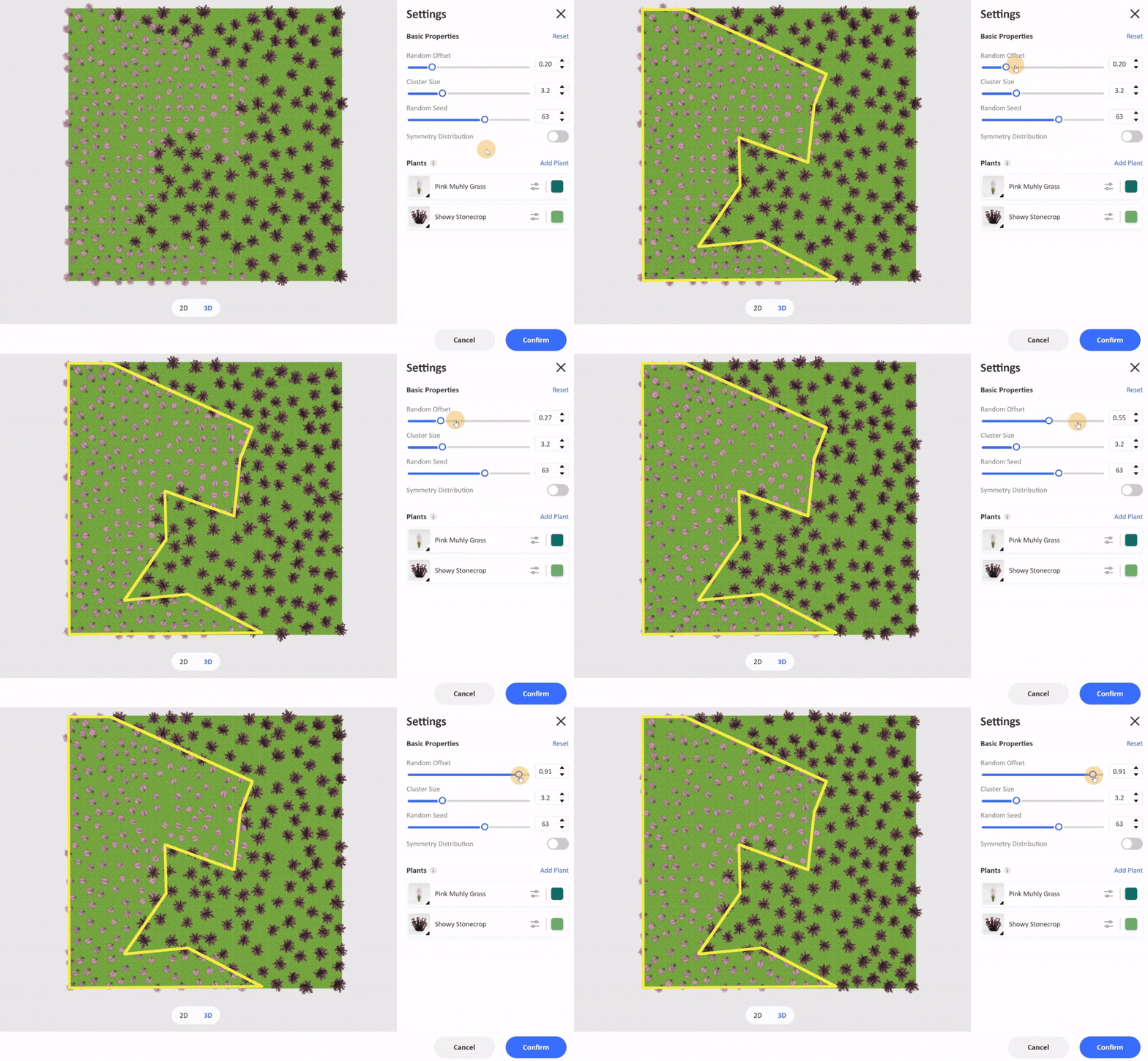
·Random Offset: Adjust the scattering positions of the plants within the current area to make the plant arrangement look more natural.
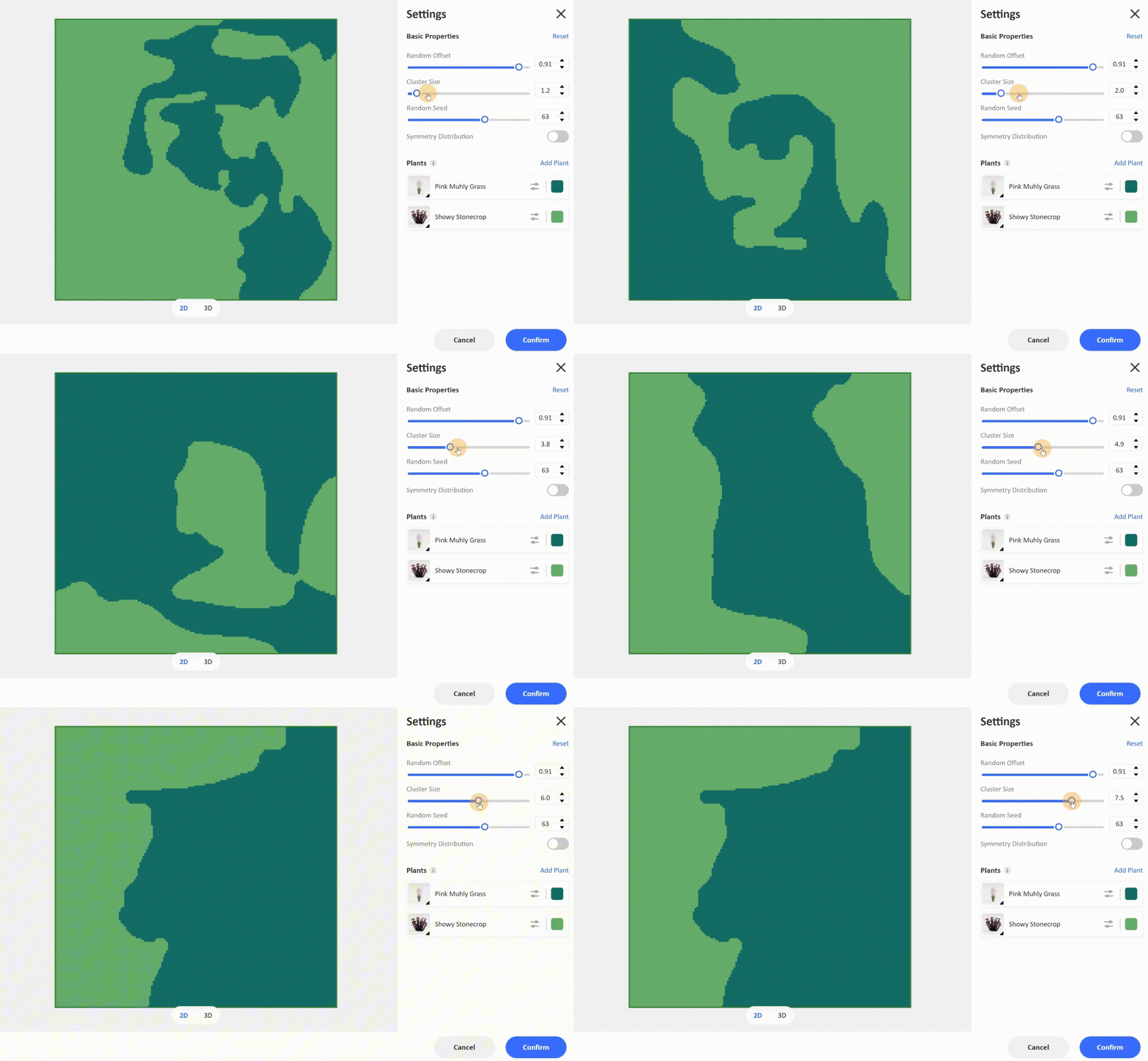
·Cluster Size: Control the patch size of clustered plants of the same species. (Note: Once the value exceeds a reasonable limit, the layout will remain unchanged)
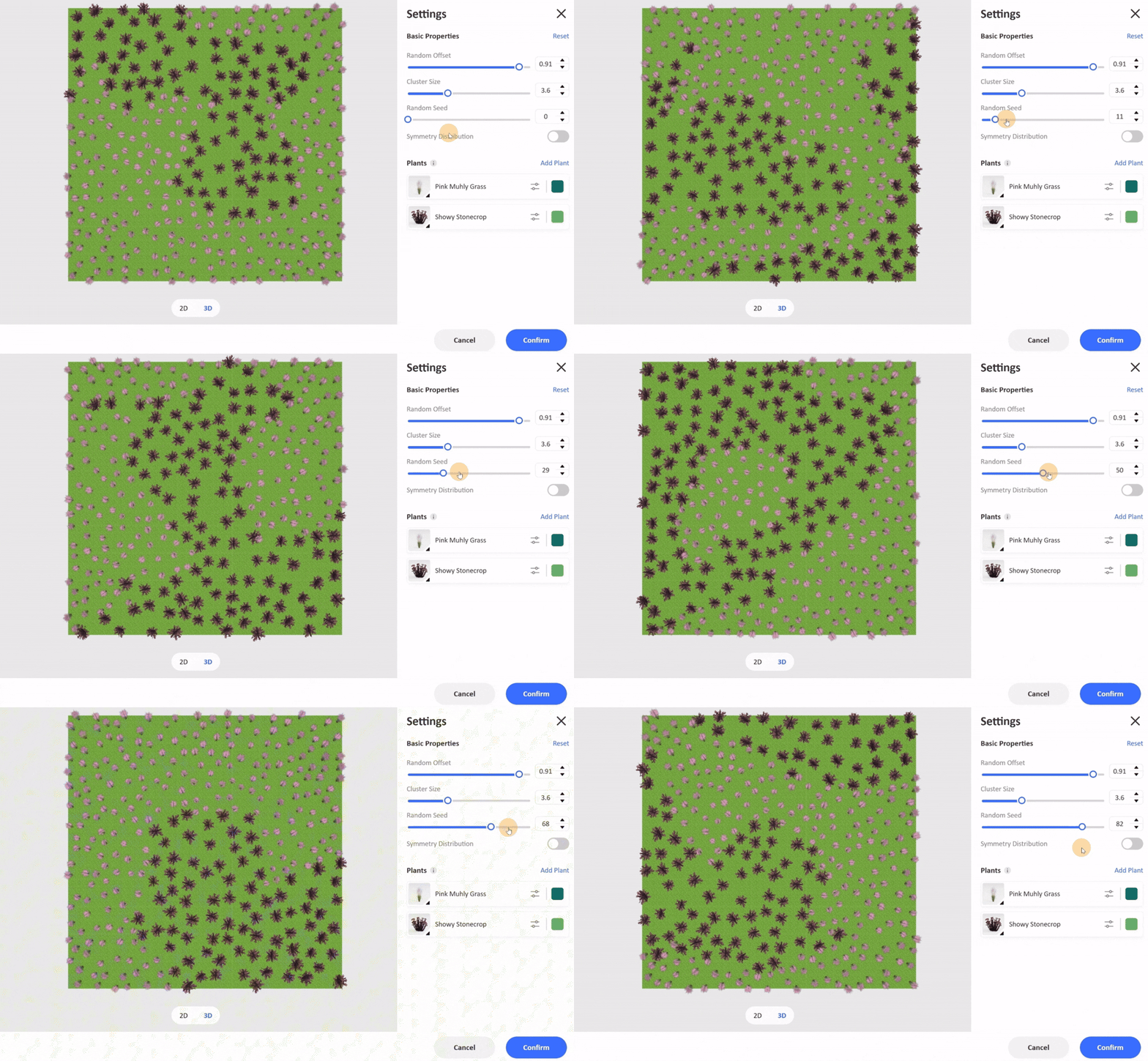
·Random Seed: Redistribute the planting areas for all plants.
·Symmetry Distribution: Toggle this switch on to arrange the plants in a structured, symmetrical layout.
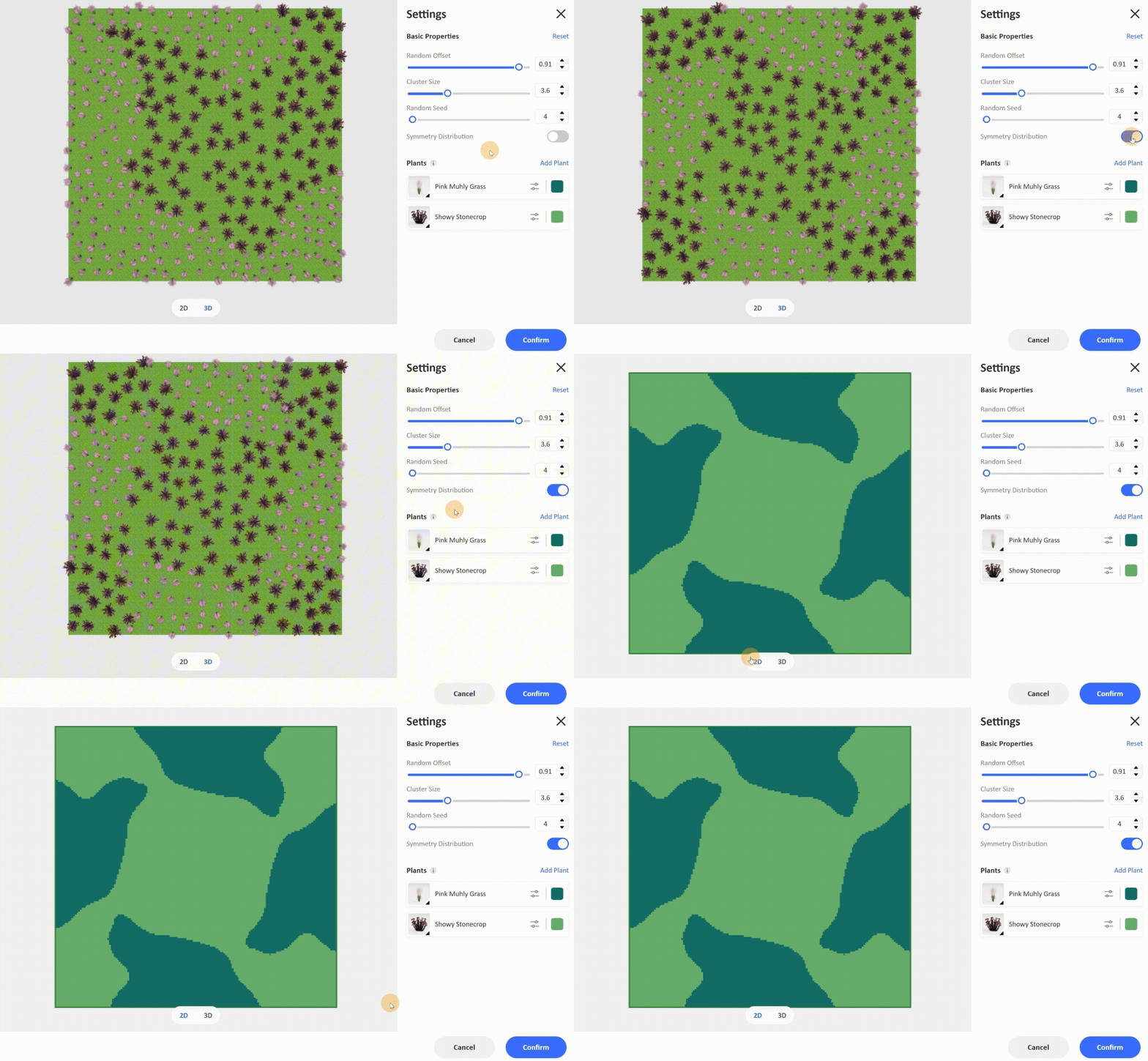
3. Plants
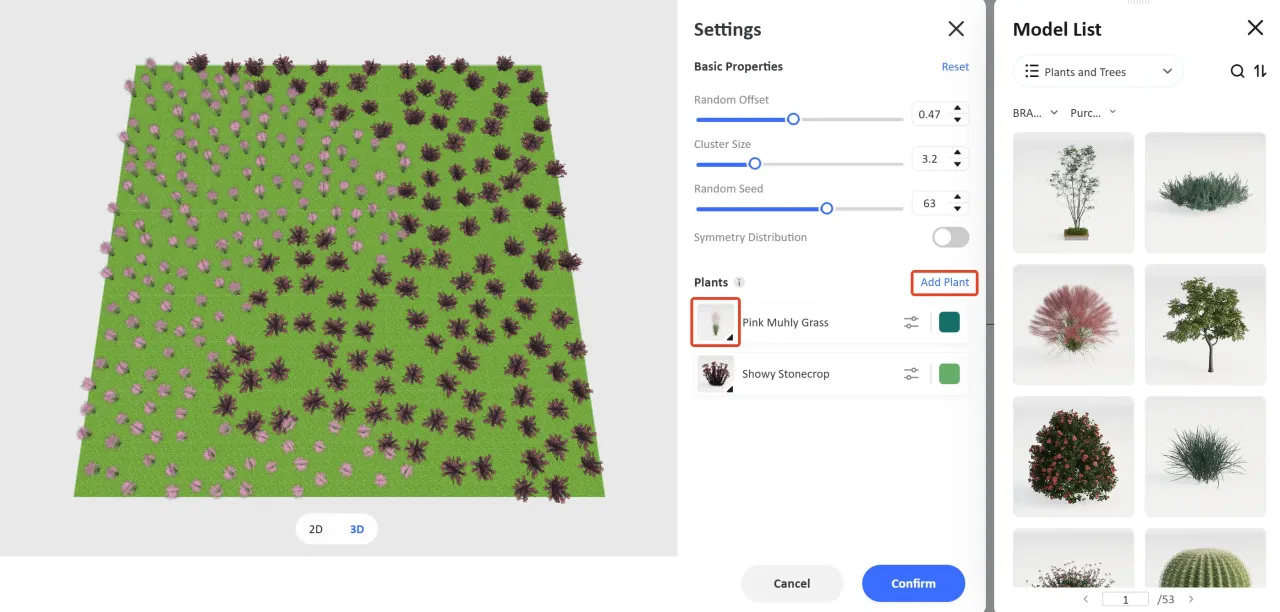
·Add or Replace Plants: Click Add Plant to open the public library and freely add more plant models. Click directly on a plant's thumbnail to choose a new plant from the library and replace it with one click.
·Spacing: Click the slider icon on the right side of the plant to individually adjust the density of that plant.
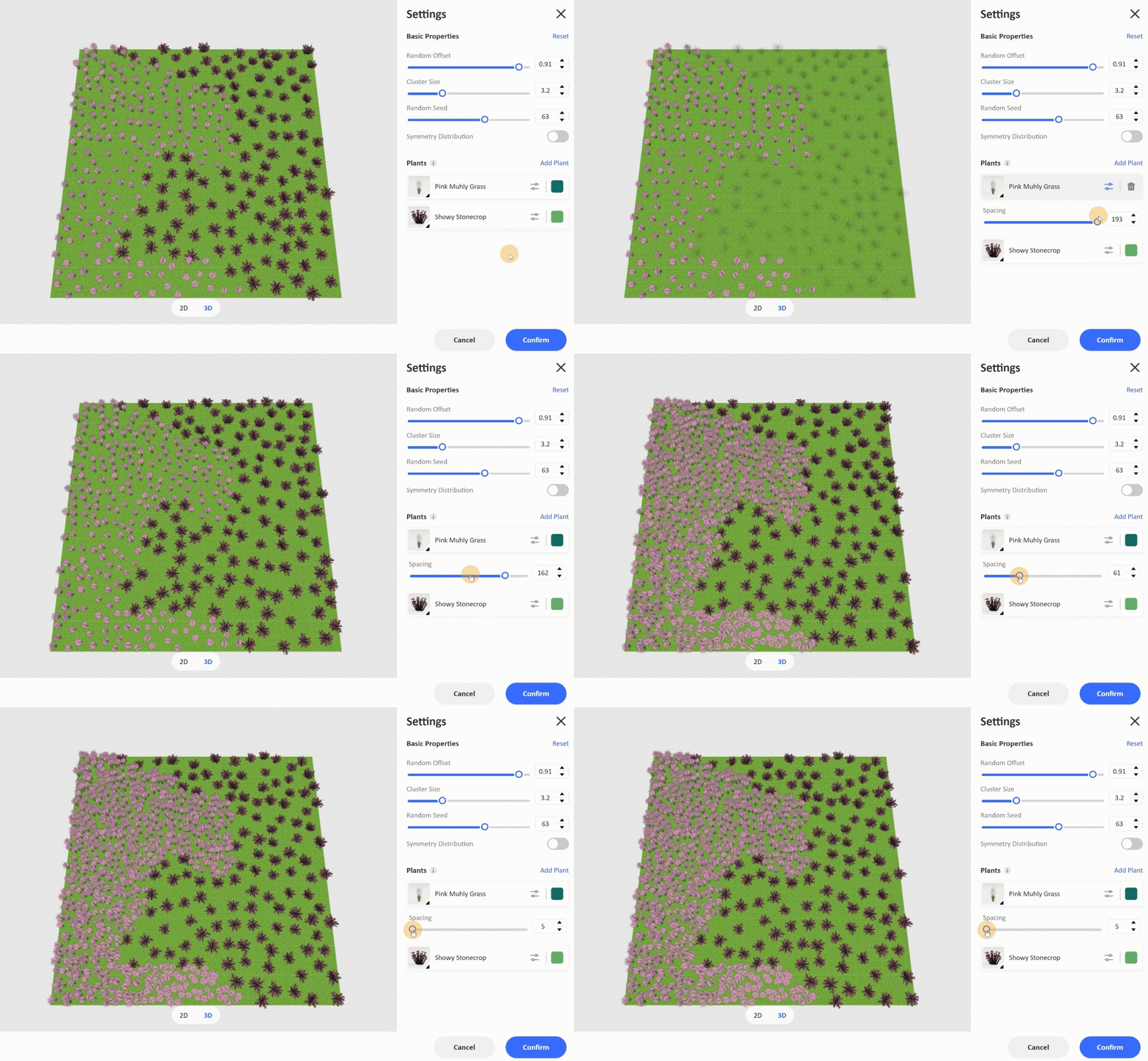
After adjustments are complete, click Confirm in the bottom right corner to apply the changes.
💡 Troubleshooting & Pro Tips
1. Greyed-out Plant Icons
If a plant's icon in the editing panel appears greyed out and cannot be edited, it indicates that the current flower border area is too small, causing the system to skip generating that specific plant. We recommend expanding the flower border area or using Random Seed to redistribute the layout.
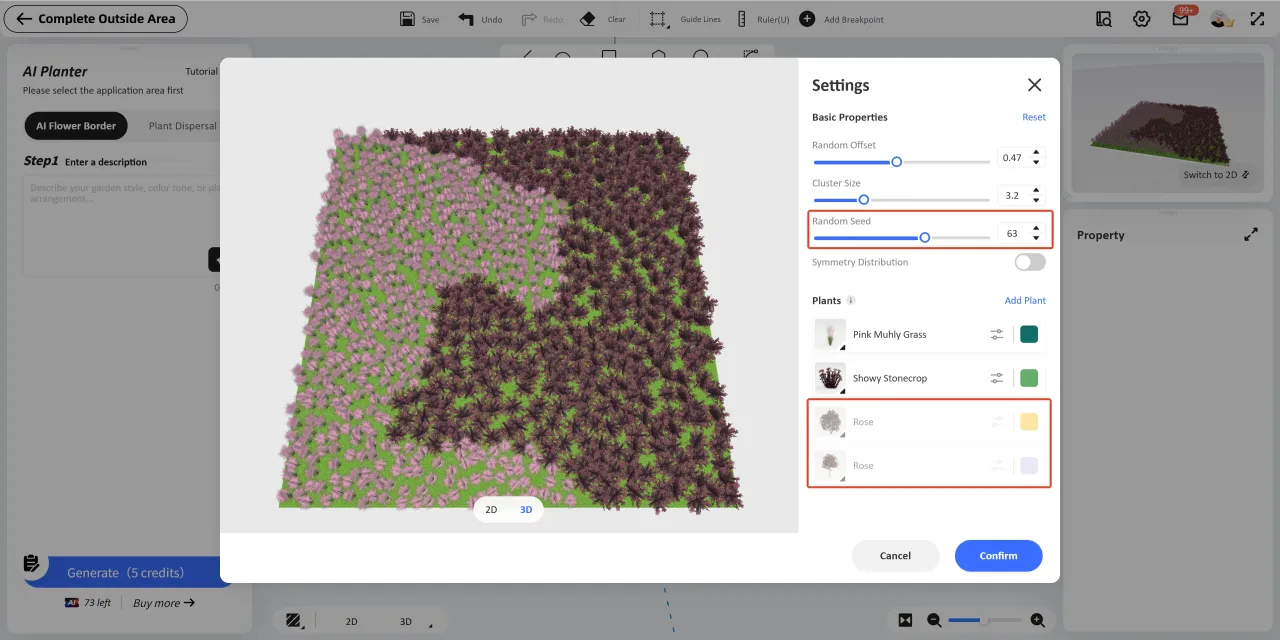
2. One-Click Clear
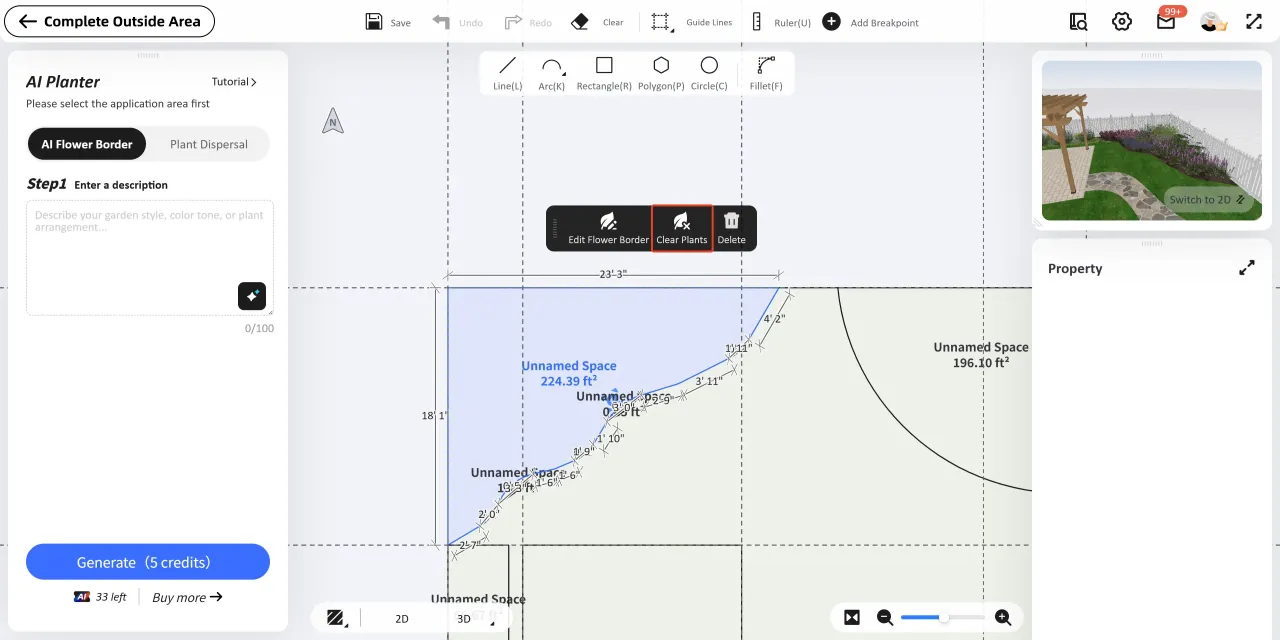
If you are not satisfied with the current generated result and want to delete it completely, simply select the area in the 2D view and click Clear Plants.
3. Zero-Cost Adjustments
Only the initial generation of the flower border consumes 5 credits. Any subsequent adjustments made within the Edit Flower Border panel will not cost any credits. Feel free to experiment with your creativity!
Click to watch the full video tutorial: 📺 Watch Video Tutorial
This is the complete workflow for using the AI Flower Border feature. Welcome to log in to Homestyler and start your flower border design journey! 🚀
