
AI Decor helps you quickly apply professionally designed templates to your project. You can add one or multiple models from a template, apply an entire room design, or save your own designs as reusable personal templates.
1. Open AI Decor
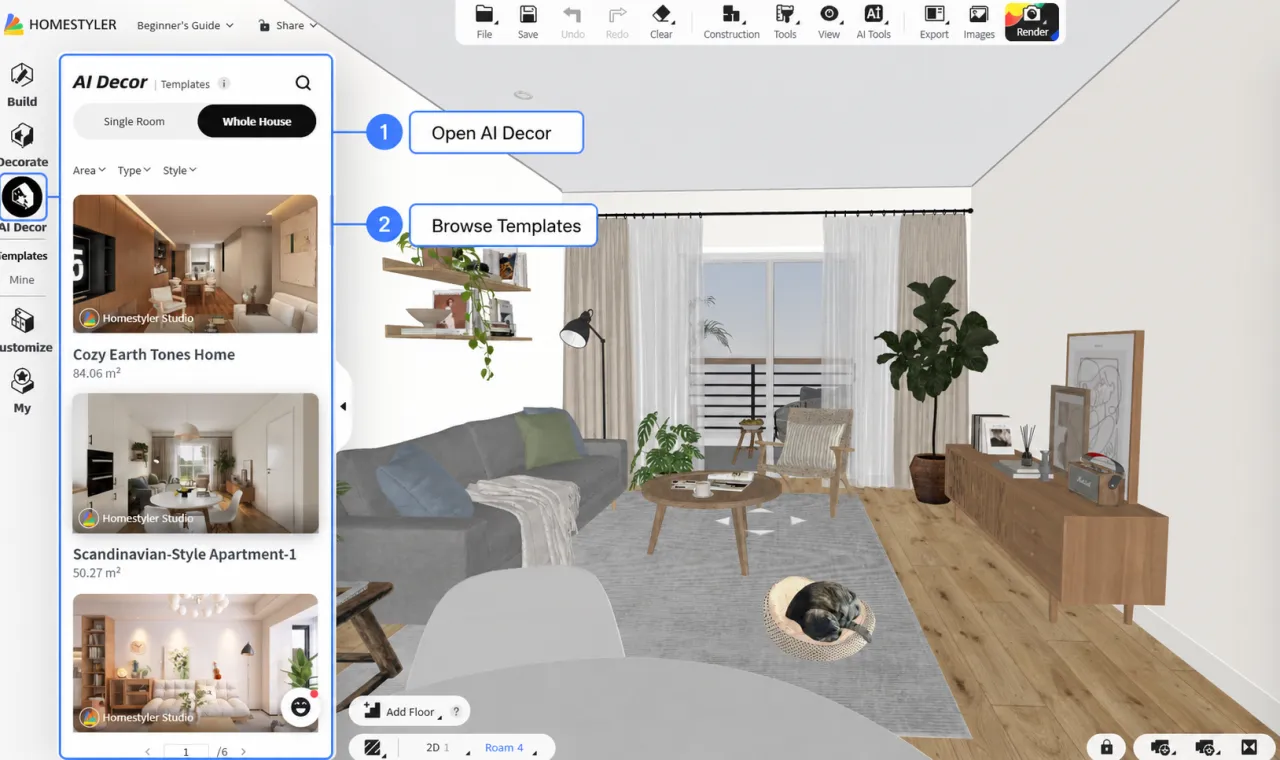
Click AI Decor in the left navigation bar to open the template panel.
AI Decor contains two sections:

2. Browse and Select a Template
Under Templates, use the following options to find a design:
- Single Room: Browse templates for individual rooms.
- Whole House: Browse complete designs containing multiple rooms.
- Area, Type, and Style: Filter templates by area, room type, or design style.
- Search: Find templates using keywords.
Hover over a template image to open its details.
For a Whole House template, select the room thumbnails below the preview to switch between rooms in the design.
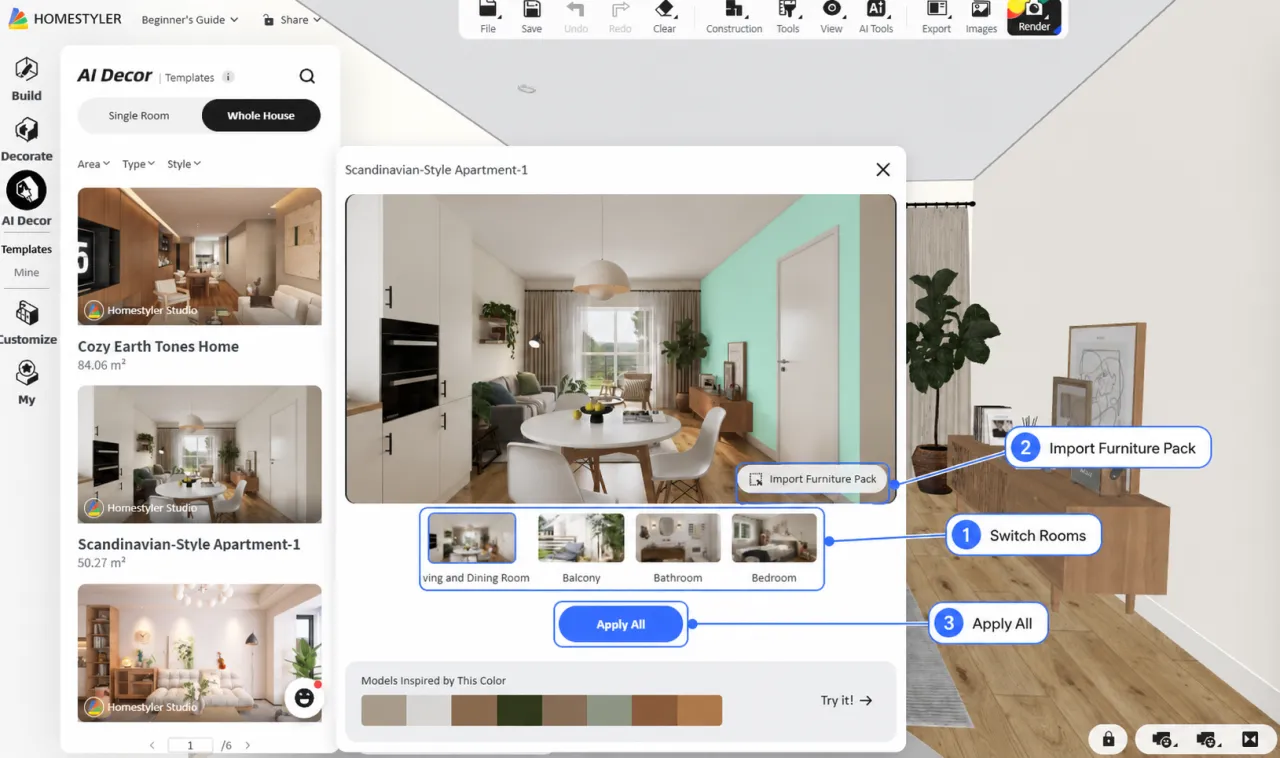
The template details also include Models Inspired by This Color, which recommends models based on the design's color palette.
3. Apply Template Content
You can add selected models from a template or apply the complete room design.
Add a Single Model
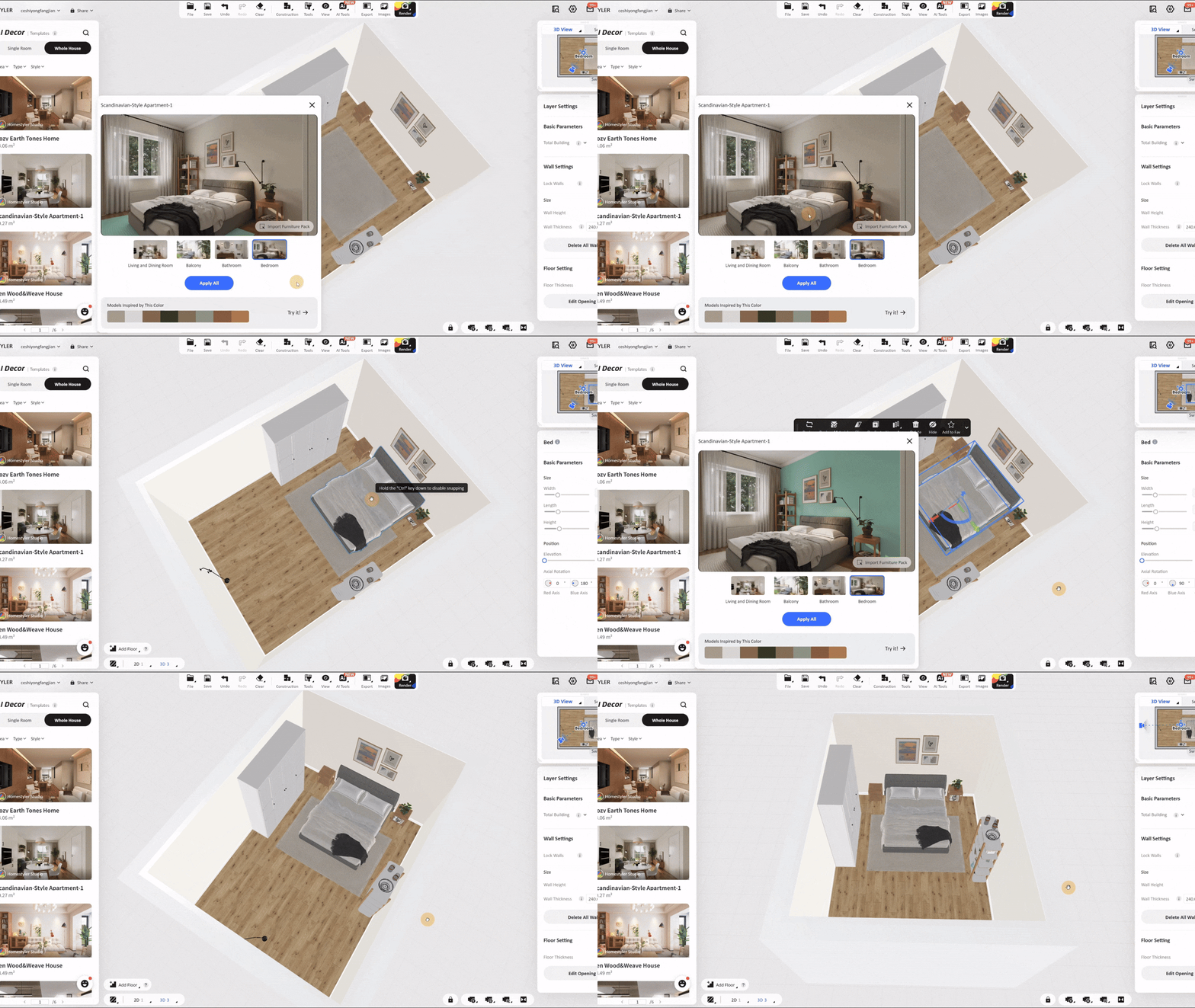
Hover over a model in the template preview. Models that can be added individually will be highlighted.
1. Click the highlighted model to pick it up.
2. Move it into your design.
3. Click again to place it.
Add Multiple Models
Hold Shift and click each model you want to select. Release Shift, then move and place the selected models in your design.
Import All Available Models
Click Import Furniture Pack to pick up all available models from the preview and place them in the current scene.
Apply the Complete Room Design
Click Apply All to apply the furniture, finishes, and decorations from the selected template room to the current room.
Before applying the design:
- Make sure the current room type matches the selected template room.
- Existing furniture, finishes, and decorations in the room will be replaced.
- Save your project first if you need to preserve the current design.
Model Selection Limitations
Custom walls, floors, ceilings, doors, windows, and other structural elements cannot be selected or moved individually. Items that do not highlight in the preview usually cannot be picked up separately.
4. Review the Applied Design
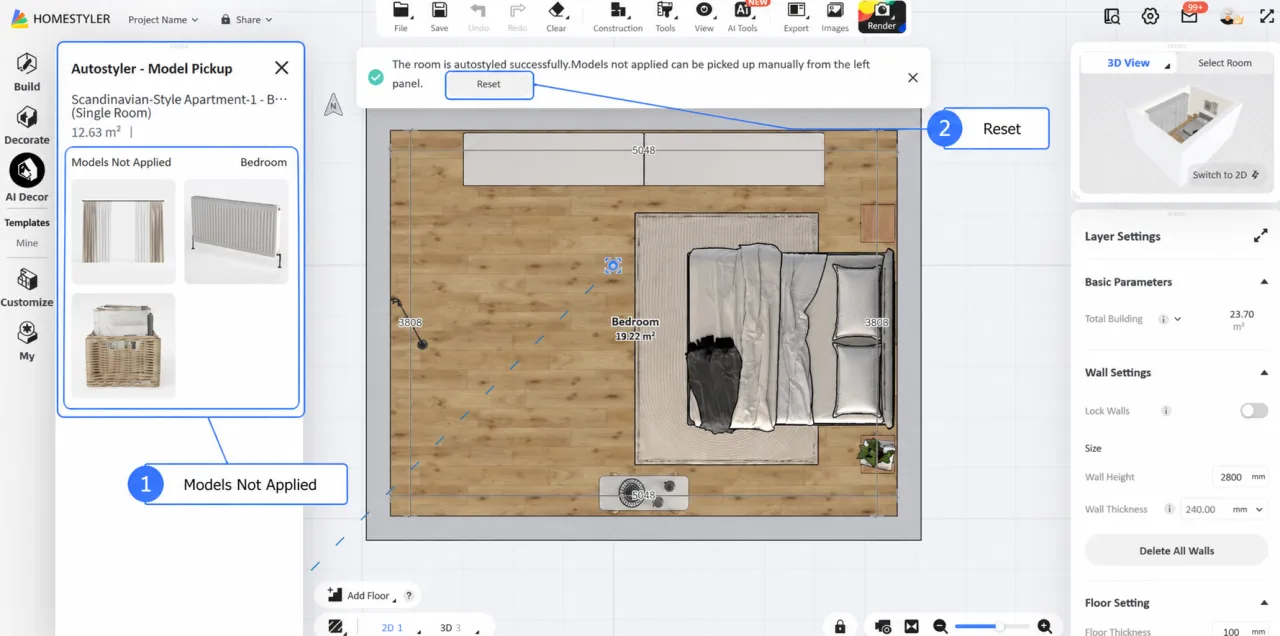
Place Models That Were Not Applied
Some models may not be applied automatically because of differences in room dimensions, layout, or available space.
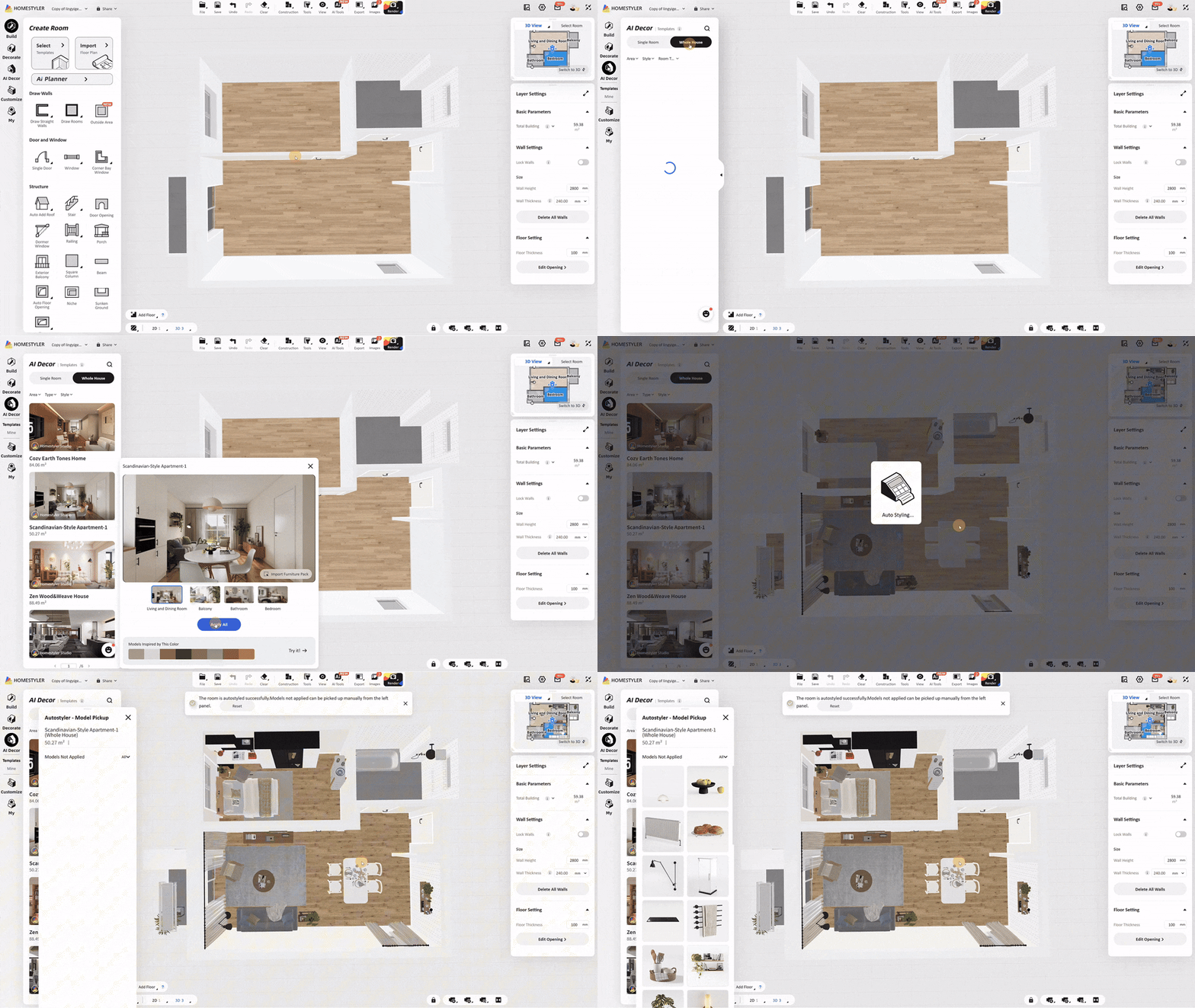
These items will appear under Models Not Applied in the left panel. Select them from the list and place them manually in the room.
Restore the Previous Design
After the template has been applied, a confirmation message appears at the top of the page. If the result is not as expected, click Reset in the message to restore the design from before the template was applied.
5. Clear Room Content
To remove existing furniture or finishes from the current room, click Clear in the top toolbar and select an option:
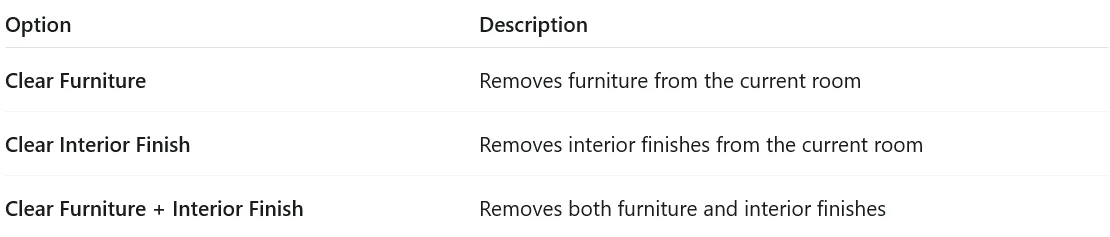
Before clearing any content, confirm that the correct room is selected.
6. Create a Personal Template
Save your own room design under Mine to create a reusable personal template.
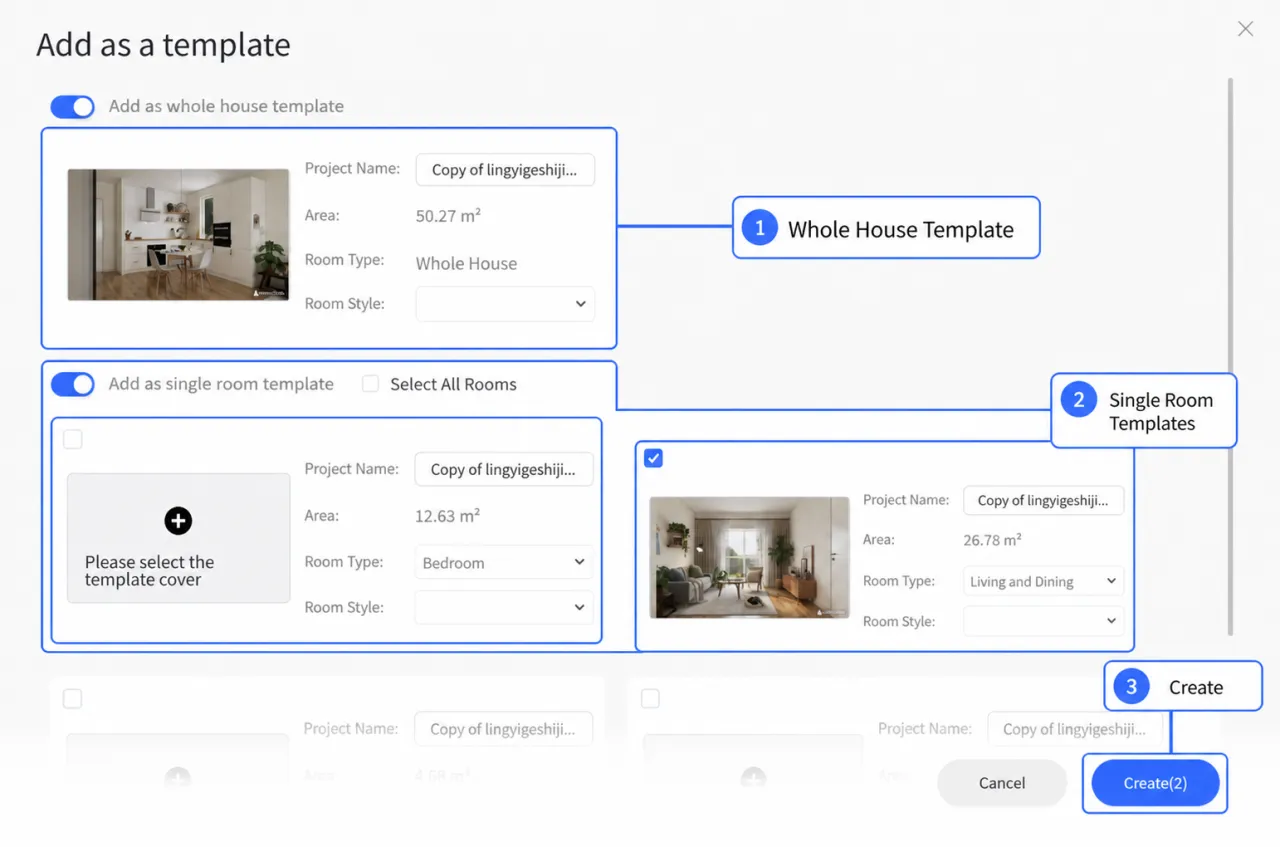
Create a Template
1. Open Mine in the AI Decor panel.
2. Click Create Sample Room.
3. In the Add as a template window, select the room you want to save.
4. Select a room thumbnail and enter the template information.
5. Save the template.
Before You Begin
Before creating a personal template:
- Set the correct room type.
- Render at least one image of the room.
- Make sure the camera is inside the target room when rendering.
Rendered images are assigned according to the room containing the camera. If the camera is outside the target room, the image will not appear in that room’s thumbnail list.
Frequently Asked Questions
Why can't I select some items in the template preview?
They may be walls, floors, ceilings, doors, windows, or other structural elements that cannot be picked up individually.
Why are some models missing after I apply a design?
Some models may not fit automatically because of the room's dimensions, layout, or available space. Add them manually from the Models Not Applied list.
How do I restore the design from before the template was applied?
Click Reset in the confirmation message displayed after the template is applied.
Why can't I find a rendered image when creating a personal template?
Make sure the camera was inside the target room when the image was rendered. Rendered images are assigned according to the camera's room.
