
From floor planning and design inspiration to 3D model creation and visual presentation, AI is making the interior design process faster and more efficient. Homestyler offers a range of AI Tools designed for different creative tasks, helping you generate concepts, explore styles, and refine your designs.
This guide introduces eight commonly used AI features and provides official illustrated or video tutorials to help you quickly understand how each tool works.
How to Access AI Tools
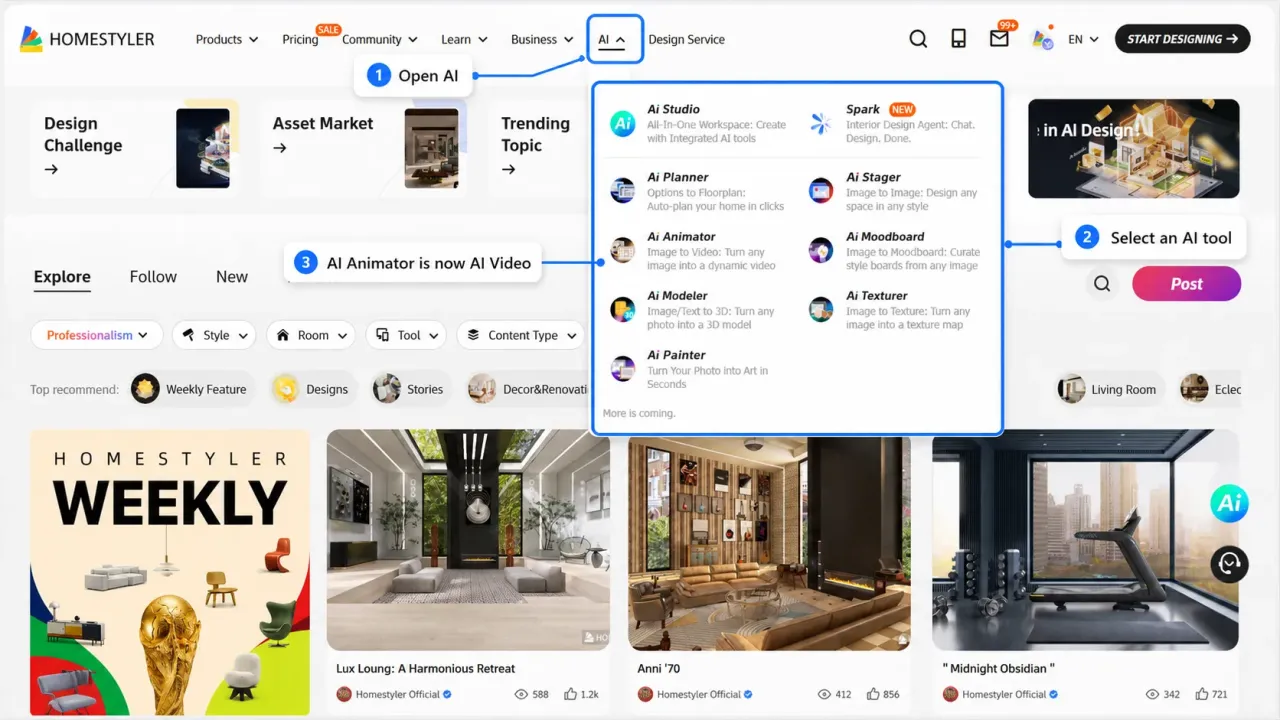
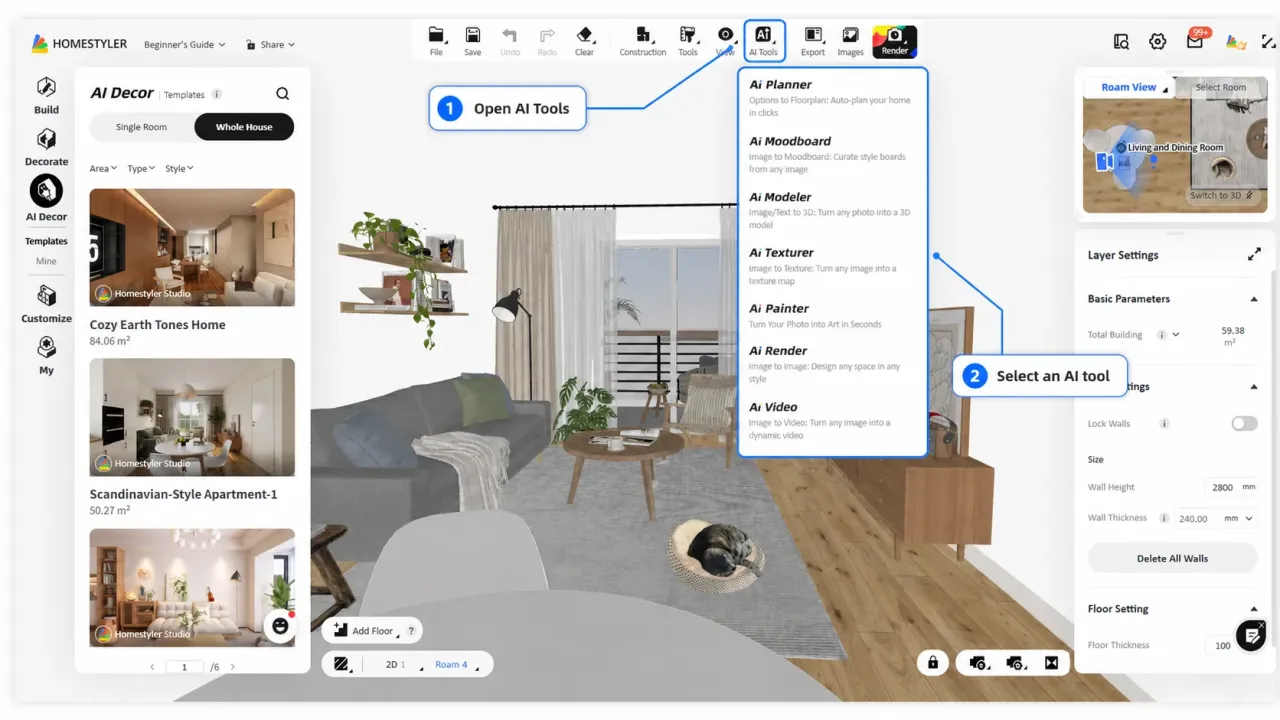
You can access Homestyler AI Tools in two ways:
1. Click AI in the top navigation bar on the Homestyler homepage, then select the AI tool you need.
2. Open the 3D design interface and click AI Tools in the top toolbar to access the AI features supported in the current design workflow.
AI Tools Overview
1. AI Planner: Generate Floor Plans from Your Requirements
Best for: Creating initial 2D floor plan concepts quickly.
Set the required number of bedrooms, bathrooms, kitchens, and other main spaces. You can also add optional rooms such as a study, laundry room, garage, or balcony and specify the total floor area. Once the floor plan has been generated, open it in the 3D design tool for further editing.
View the AI Planner Illustrated Tutorial
2. AI Stager: Explore Design Styles from a Room Photo
Best for: Virtual staging, room makeovers, and early-stage style exploration.
Upload a photo of an interior space and select your preferred design style. AI Stager will generate a new visual concept for the room. It is ideal for comparing different style directions, although the generated result is intended primarily for visual inspiration rather than as a fully editable 3D project.
View the AI Stager Illustrated Tutorial
3. AI Moodboard: Create Style Boards from Reference Images
Best for: Organizing colors, materials, and stylistic direction while communicating design concepts.
Upload one or more interior or exterior reference images, then click Generate. Once the moodboard is ready, you can view, download, or share it for early-stage concept development and style confirmation.
View the AI Moodboard Illustrated Tutorial
4. AI Modeler: Create 3D Models from Images or Text
Best for: Creating custom furniture, decorations, and other objects that are not available in the existing model library.
Upload a clear image with a complete subject and a clean background. Select the appropriate model category, enter the required dimensions, and generate the 3D model. Once complete, the AI-generated model can be found under My > Uploads > 3D Model and added to your design.
Watch the AI Modeler Video Tutorial | View the AI Modeler Illustrated Tutorial
5. AI Texturer: Create Usable Materials from Images
Best for: Converting real-world wood, stone, fabric, and other surface images into materials for 3D designs.
Upload a clear material image, select the area you want the AI to recognize, and enter the actual dimensions of one texture unit. Once generated, the material can be found under Floor Planner > My > AI Result > AI Textures.
View the AI Texturer Illustrated Tutorial
6. AI Render: Generate Visuals with Tags and Prompts
Best for: Quickly testing design directions, lighting conditions, atmosphere, and scene content.
Open AI Tools > AI Render from the top toolbar in the 3D design interface. Select tags for lighting, people, pets, decorations, and other elements, or enter a custom prompt. Set the aspect ratio, resolution, and camera angle, then click Generate. Generated images can be viewed in the Gallery in the upper-right corner.
View the AI Render Illustrated Tutorial | Watch the AI Render Video Tutorial
7. AI Painter: Turn Photos into Decorative Artwork
Best for: Creating personalized artwork, framed decorations, and interior styling assets.
Upload a photo and select a painting style, image size, and frame design. Click Generate to create the artwork. The result can be edited, downloaded, shared, or used as a decorative element in a Homestyler project.
View the AI Painter Illustrated Tutorial
8. AI Animation: Bring Static Images to Life
Best for: Creating room walkthroughs, furniture showcases, construction sequences, day-to-night transitions, and seasonal transformations.
Select an animation template and upload a start-frame or end-frame image. Review the prompt automatically generated by the AI, then set the aspect ratio, resolution, and video duration according to your publishing needs. Click Generate to create the animation. Completed videos can be viewed and downloaded from the Album panel.
Watch the AI Animation Video Tutorial
Start Creating
Choose the AI Tool that best matches your current design stage. From floor plan generation to final renders and animated presentations, Homestyler AI Tools can help you explore ideas and complete your designs more efficiently.
Note: Some AI features may consume AI Credits. Available entry points, generation settings, and credit requirements may change as the product is updated. Please refer to the latest information displayed in the current Homestyler interface.


